
The Visual Studio Code extension for Vale.
The Vale extension for VS Code provides customizable spelling, style, and grammar checking for a variety of markup formats (Markdown, AsciiDoc, reStructuredText, HTML, and DITA).
Note
This new release uses the Vale Language Server. This allows for tighter integration with Vale features, but does involve more platform specific work and some features of the old extension are harder to implement. I based re-development of these features on this survey. If you find features you use no longer working, open an issue.
Warning
I know that for those of you use you workspaces, the extension has been broken for a little while. Sorry! I am working on this. The Vale Language Server also has no support for custom Vale binary paths. Again, I am attempting to find a solution to this.
- Install Vale;
- install
vale-vscode(this extension) via the Marketplace; - Restart VS Code (recommended).
At the moment, the extension uses any configuration, vocabularies, and packages defined in your Vale configuration. If you experience any issues with the extension, check if Vale runs as expected on the command line first.
In the future, the extension may provide a UI or other configuration options for configuring Vale.
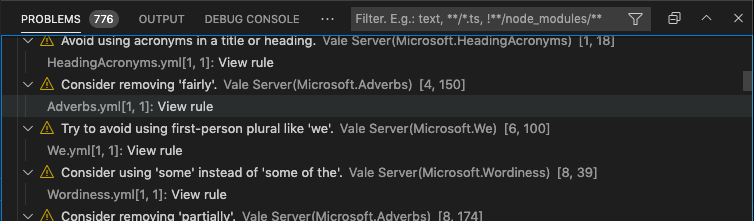
Browse detailed information for each alert, including the file location, style, and rule ID.
This feature is temporarily disabled due to changes in the Vale CLI. It will be re-enabled in the future.
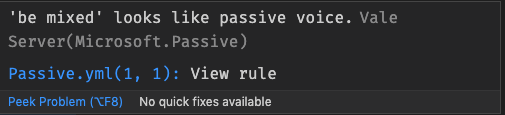
Navigate from an in-editor alert to a rule's implementation on your StylesPath by clicking "View Rule".
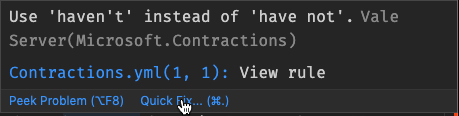
Fix word usage, capitalization, and more using Quick Fixes (macOS: cmd + ., Windows/Linux: Ctrl + .). The quick fixes feature depends on the underlying rule implementing an action that VS Code can then trigger.
You need a spelling style in your Vale configuration to enable spell-checking.
With no additional Vale configuration, the spell checker uses a Hunspell-compatible US English dictionary. If you want to use other custom dictionaries, then configure your spelling style with custom dictionaries.
The extension doesn't support adding words to dictionaries. For now, the best option is to add them to ignore files or filters as described in the Vale documentation.
You can synchronize Vale packages from your configuration file using the Vale: Sync command from the command palette (Cmd/Ctrl + Shift + P). This runs vale sync to download and update packages defined in your .vale.ini file.
Alternatively, you can enable automatic syncing on startup using the vale.valeCLI.syncOnStartup setting (see Settings below).
You can add words to Vale vocabulary lists direct from the editor. Make sure to set the vale.vocabPath setting. Find the menus by selecting the word and right-clicking, or set keybindings for the commands.
The extension offers a number of settings and configuration options (Preferences > Extensions > Vale).
vale.valeCLI.config(default:null): Absolute or relative path to a Vale configuration file.vale.valeCLI.minAlertLevel(default:inherited): Defines from which level of errors and above to display in the problems view.vale.doNotShowWarningForFileToBeSavedBeforeLinting(default:false): Toggle display of warning dialog that you must save a file before Vale lints it.vale.readabilityProblemLocation(default:status): If you have anyReadabilityormetricstyles, the extension can display the readability score in the status bar, the problems view, or both.vale.enableSpellcheck(default:false): Enable in-built spell checking for anySpellingstyles.vale.valeCLI.syncOnStartup(default:false): If you have packages in a .vale.ini file, then sync them on startup.vale.valeCLI.filter(default:null): Add additional Vale filters.

