

Work with remote file systems over SSH, SFTP, FTP, and FTPS directly in VS Code — as if they were local.
| Protocols | SSH, SFTP, FTP, FTPS |
| Auth | Password, private key (PPK/PEM), SSH agent, FTPS/TLS |
| Proxy | SOCKS4, SOCKS5, HTTP CONNECT — per-connection, credentials in SecretStorage |
| Jump Host (Beta) | SSH ProxyJump / bastion host — per-connection, supports Password / Private Key / SSH Agent auth |
| File system | Native VS Code Explorer integration — open remote folders as workspace folders |
| Terminal | Interactive SSH shell with full PTY and window resize support |
| Connection manager | Folders, drag & drop, multi-select, duplicate, import from ~/.ssh/config / WinSCP / SSH FS / FileZilla / PuTTY / Total Commander, export to JSON / SSH Config |
| Security | Passwords in VS Code SecretStorage; optional AES-256-GCM master password encryption; optional cross-device sync via VS Code Settings Sync |
| AI (Copilot) | @bridge chat participant + 3 tools (runCommand, readFile, searchFiles); opt-in Full SSH Access mode per connection for server administration |
| Multi-OS | Per-connection OS setting — Linux, macOS, Windows (PowerShell) |
| Localization | 12 languages: EN, CS, DE, FR, ES, PL, HU, SK, UK, ZH-CN, KO, JA |
- SSH / SFTP — Full file system access, terminal, and command execution via
ssh2 - FTP / FTPS — Secure and plain FTP file browsing and transfers via
basic-ftp
- Each connection has an Operating System setting — Linux (default), macOS, or Windows
- All shell commands (
stat,grep,find,cp,rm, file read/write, MySQL…) are automatically adapted to the target OS - Linux & macOS use POSIX tools; Windows uses PowerShell equivalents (
Get-ChildItem,Select-String,Copy-Item, etc.) - Centralized in a single
shellCommandsmodule — easy to extend
- Open remote directories as workspace folders — use the built-in Explorer, Search, and Editor
- Connecting to a server automatically creates a named
.code-workspacefile and opens it — the window title shows the server hostname (e.g.example.com (Workspace)) - When VS Code reopens the workspace file, auto-reconnect re-establishes the connection transparently
FileSystemProvideron theremote-bridge://scheme — transparent to all VS Code features- File content and directory listing cache with configurable TTL
- Connection pooling with idle timeout for optimal performance
- Organize connections into folders with drag-and-drop support
- Multi-select connections for bulk delete or Move to Folder
- Duplicate, edit, and delete connections from the sidebar
- Import from:
~/.ssh/config- WinSCP (including encrypted passwords with master password)
- SSH FS VS Code extension
- FileZilla Site Manager (FTP, SFTP, FTPS; Base64 passwords decoded)
- PuTTY (Windows registry or
~/.putty/sessions/; SSH only) - Total Commander FTP plugin (
wcx_ftp.ini; FTP and FTPS)
- Export to JSON (all connections, re-importable; optional password inclusion) or SSH Config (SSH/SFTP connections)
- Individual passwords stored securely in VS Code SecretStorage
- Optional master password to encrypt the entire connection store (AES-256-GCM + PBKDF2)
- Optional connection sync — sync encrypted connections (including passwords) across devices via VS Code Settings Sync (requires master password)
- Automatic daily encrypted backups — stored locally, never synced, with 7-day / 4-week retention
- Proxy support — route connections through a SOCKS4, SOCKS5, or HTTP CONNECT proxy, configured per connection. Proxy credentials stored in VS Code SecretStorage alongside other secrets.
- Open an interactive SSH shell directly in the VS Code integrated terminal
- Full PTY support with window resizing
Chat participant @bridge with commands:
/connect— Connect to a server/ls— List remote files/status— Show connection status
Tools (always-on, no configuration required):
| Tool | Reference | Description |
|---|---|---|
| Run Remote Command | #remoteRun |
Execute shell commands on remote servers (SSH only) |
| Read Remote File | #remoteRead |
Read file contents with efficient partial reads (line range, tail, search/grep within file with regex) |
| Search / Find | #remoteSearch |
Search file contents (grep) or find files by name (glob) — works on SSH and FTP |
Built-in safety rails:
- Dangerous commands blocked —
halt,shutdown,reboot,rm -rf /,mkfs,dd, fork bombs and similar are rejected with a message asking the user to run them manually. - Read/search commands redirected —
grep,cat,head,tail,findand similar are blocked and the agent is directed to use#remoteRead/#remoteSearchinstead. - SSH write commands blocked —
echo >,sed -i,tee,python3 -care blocked; file editing uses VS Code's native tools onremote-bridge://workspace files.
Full SSH Access mode (opt-in per connection): when enabled in the connection's Advanced settings, the agent can read, search, and write using direct shell commands anywhere on the server. Only destructive commands stay blocked. Intended for server administration tasks where the workspace-only restriction would be too limiting.
Note: All Remote Bridge tools are available only in Agent mode, the Copilot mode where the model autonomously executes multi-step tasks. In Ask, Edit, and Plan modes the tools are not invoked and will not appear. The
@bridgechat participant and its commands (/connect,/ls,/status) work in any chat mode.
Editing remote files: Open them via the Explorer and use VS Code's built-in file editing tools on
remote-bridge://workspace files — the same as editing any local file.
Fully localized in 12 languages:
| Language | Code |
|---|---|
| English | en (default) |
| Czech | cs |
| German | de |
| French | fr |
| Spanish | es |
| Polish | pl |
| Hungarian | hu |
| Slovak | sk |
| Ukrainian | uk |
| Chinese (Simplified) | zh-cn |
| Korean | ko |
| Japanese | ja |
VS Code automatically selects the localization matching your display language.
- VS Code
1.93.0or later - For SSH/SFTP connections: an accessible SSH server
- For FTP/FTPS: an accessible FTP server
Search for "Remote Bridge" in the VS Code Extensions view (Ctrl+Shift+X).
code --install-extension remote-bridge-<version>.vsix- Open the command palette (
Ctrl+Shift+P) → type "Remote Bridge: Add Connection" - Fill in the connection details — see Connection Form below
- Open the command palette → "Remote Bridge: Show Connections" to open the sidebar
- Click Connect — the remote directory opens as a named workspace and the server name appears in the status bar
- Right-click → Open SSH Terminal for an interactive shell
Tip: If your activity bar is visible (left edge of VS Code), you'll also see a Remote Bridge icon there for quick access to the sidebar.
When adding or editing a connection, you'll see a form with these sections:
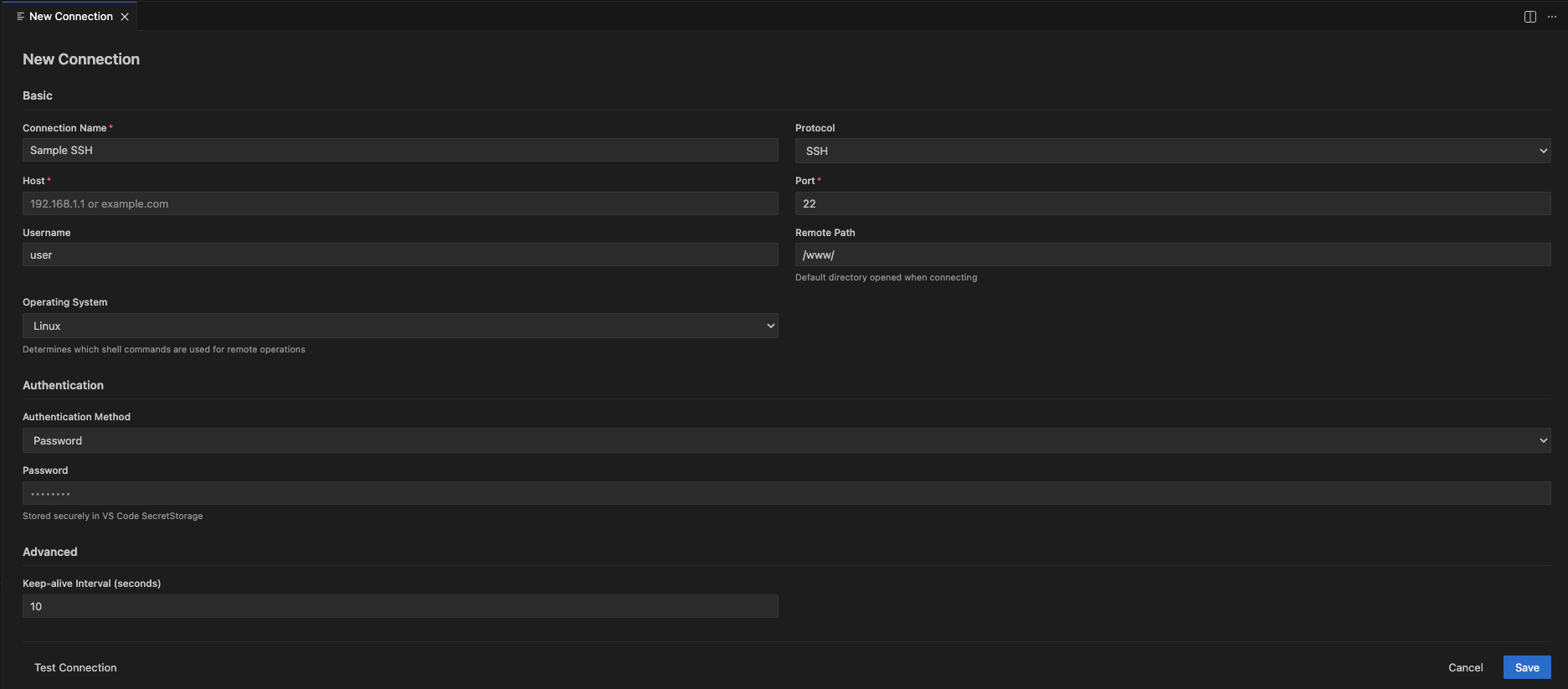
Basic Settings:
| Field | Description |
|---|---|
| Connection Name | A friendly name for your connection |
| Protocol | SSH, SFTP, FTP, or FTPS |
| Host | Hostname or IP address of the server |
| Port | Port number (auto-filled when switching protocol: SSH/SFTP → 22, FTP → 21, FTPS → 990) |
| Username | Your login username |
| Remote Path | Starting directory on the server (default: /) |
| Operating System | Target OS — Linux, macOS, or Windows (affects shell commands) |
Authentication:
| Method | Description |
|---|---|
| Password | Enter password manually (stored in VS Code SecretStorage) |
| Private Key | Path to your SSH private key file (with optional passphrase) |
| SSH Agent | Uses ssh-agent / Pageant for key management |
Advanced (optional):
- Proxy — route the connection through a SOCKS4, SOCKS5, or HTTP CONNECT proxy; set host, port, and optional credentials
- Keep-alive interval
- TLS/FTPS toggle (for FTP connections)
- Allow self-signed TLS certificates (FTPS only) — disables certificate verification; use only for servers with self-signed or invalid certs. The default is strict verification.
- Jump Host (ProxyJump) (SSH/SFTP only, Beta) — connect through a bastion / jump host using SSH port forwarding. Supports Password, Private Key, and SSH Agent authentication on the jump host. Cannot be combined with Proxy.
- Full SSH Access (SSH/SFTP only) — allows the AI agent (
@bridge) to read, search, and run commands outside the configured workspace root. Useful for server administration tasks: installing packages, editing system config files, managing services. Destructive commands remain blocked. - Default permissions — configure per-connection Unix permissions for newly created files and directories using a checkbox matrix. Leave all boxes unchecked to use the server default (
umask).
Note: For FTP/FTPS over an HTTP CONNECT proxy, only the control connection is tunnelled. SOCKS4/5 proxies tunnel all traffic fully.
The Remote Bridge sidebar has two sections:
- Connections — All your saved connections, optionally organized in folders
- Active Sessions — Currently open connections with transfer statistics

Toolbar buttons (top of the Connections view):
| Button | Action |
|---|---|
| ➕ | Add Connection |
| 📁 | Add Folder |
| 🔄 | Refresh |
| ⋯ (overflow menu) | Import, Export, Set/Change/Remove Master Password, Lock/Unlock Connections, Backup/Restore |
Right-click context menu on a connection:
| Action | Description |
|---|---|
| Connect | Connect and open the remote directory as a named workspace |
| Disconnect | Close the connection |
| Open SSH Terminal | Open an interactive SSH shell (SSH/SFTP only) |
| Edit Connection | Modify connection settings |
| Duplicate Connection | Create a copy of this connection |
| Delete Connection | Remove the connection permanently |
| Move to Folder | Move selected connection(s) to a folder (available on multi-select) |
Tip: Hold
Ctrl/CmdorShiftto select multiple connections, then right-click for bulk Delete or Move to Folder.
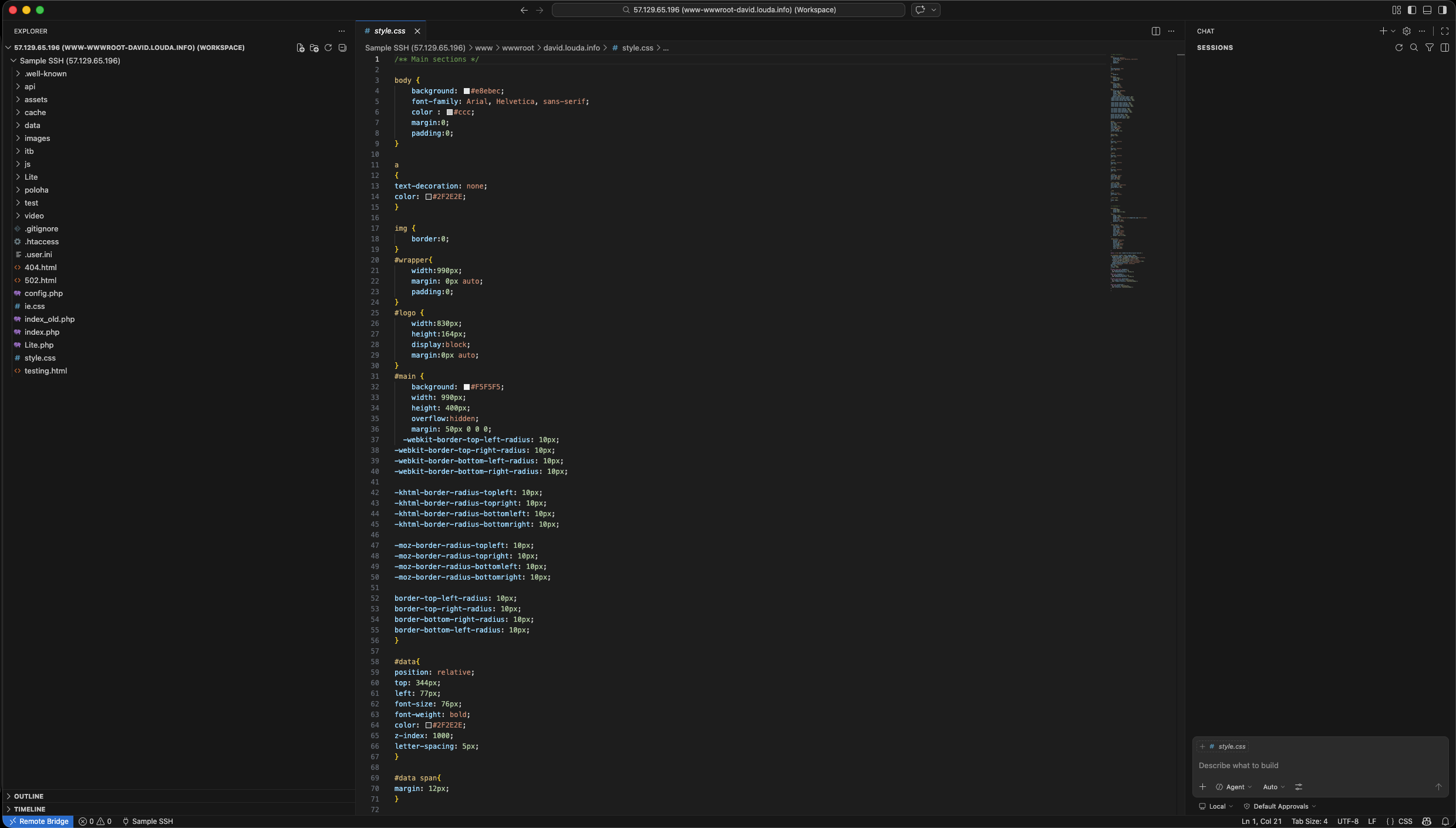
After clicking Connect, VS Code creates a named .code-workspace file for the server (stored in the extension's global storage directory) and reloads the window. The workspace title shows the hostname, e.g. example.com (Workspace). When you reopen VS Code with this workspace, the extension automatically reconnects.
The remote server appears as a folder in VS Code's Explorer. You can:
- Browse directories like local files
- Open and edit files — changes are saved back to the server automatically
- Create / rename / delete files and folders via the Explorer context menu
- Change Permissions — right-click any file or folder → Change Permissions to set Unix permissions in octal format (e.g.
755). The current mode is pre-filled and shown in symbolic notation (e.g.rw-r--r--). Works on SSH/SFTP and FTP/FTPS. - Preserve permissions on duplicate/copy — copied remote files and folders keep the source permissions when the server/protocol supports reading and applying Unix modes.
- Apply default permissions on create — newly created files and directories use the per-connection defaults from the connection form when configured; otherwise the server default (
umask) is used. - Drag & drop files (upload/download is handled transparently)
- Search across remote files using VS Code's built-in search (
Ctrl+Shift+F)
All files are accessed via the remote-bridge:// URI scheme, so they work seamlessly with VS Code extensions, syntax highlighting, IntelliSense, and Git diff.
The Remote Bridge status bar item (bottom-left) shows:
$(plug) Remote Bridge— no active connections$(plug) example.com— the name of the currently connected server$(plug) server1.example.com, server2.example.com— multiple active connections, comma-separated
Click the status bar item to open a quick-pick with all configured connections and their current status.
Right-click a connected SSH/SFTP connection → Open SSH Terminal to get a full interactive shell session inside VS Code's integrated terminal. Supports:
- Full PTY with proper window resizing
- Works with
bash,zsh,fish, and other shells - Multiple simultaneous terminal sessions
If you have GitHub Copilot Chat, type @bridge to interact with your servers:
@bridge /connect my-server
@bridge /ls /var/www
@bridge Show me the nginx config
@bridge Find all .log files larger than 100MB
@bridge Why is the site returning 502? Check nginx and php-fpm logs.
You can also reference tools directly with # in Copilot Chat — for example, type #remoteRead and Copilot will use it to read files when relevant.
The #remoteRead tool supports regex search within files (parameter search), including alternation: e.g. search: "img|overflow|max-width" searches for any of those patterns in a single server-side grep pass.
All commands are accessible via Ctrl+Shift+P (or Cmd+Shift+P on Mac):
| Command | Description |
|---|---|
| Remote Bridge: Add Connection | Open the connection form |
| Remote Bridge: Import Connections | Import from SSH Config, WinSCP, SSH FS, FileZilla, PuTTY, or Total Commander |
| Remote Bridge: Export Connections | Export connections to JSON (re-importable) or SSH Config format |
| Remote Bridge: Set Master Password | Encrypt all connections with a master password (shown when encryption is off) |
| Remote Bridge: Change Master Password | Change the current master password (shown when encryption is on) |
| Remote Bridge: Remove Master Password | Decrypt and remove the master password |
| Remote Bridge: Lock Connections | Clear the decryption key from memory |
| Remote Bridge: Unlock Connections | Prompt for the master password to unlock the panel |
| Remote Bridge: Restore from Backup | Restore connections from an encrypted local backup |
| Remote Bridge: Create Backup | Manually create an encrypted backup of current connections |
| Remote Bridge: Show Connections | Focus the Remote Bridge sidebar |
| Remote Bridge: Change Permissions | Set file or folder permissions in octal format (active when a remote file or folder is selected in the Explorer) |
All importers are accessible via: command palette → Remote Bridge: Import Connections (or the ⋯ overflow menu in the sidebar).
Reads ~/.ssh/config and imports all named hosts.
Reads WinSCP.ini (auto-detected at %APPDATA%\WinSCP.ini or manually selected). Supports master-password-protected configurations.
Reads settings from the SSH FS extension.
Reads sitemanager.xml (auto-detected at %APPDATA%\FileZilla\sitemanager.xml on Windows, ~/.config/filezilla/sitemanager.xml on Linux/macOS). Imports FTP, SFTP, and FTPS connections. Passwords stored as Base64 are decoded automatically. Passwords encrypted with a FileZilla master password (encoding="crypt") cannot be decrypted and are skipped with a warning. Folder groups from the Site Manager are preserved.
On Windows, reads sessions from the registry (HKCU\Software\SimonTatham\PuTTY\Sessions). On Linux/macOS, reads session files from ~/.putty/sessions/. Only SSH sessions are imported; other protocols (Telnet, Serial, Raw) are skipped with a warning. The private key path is preserved where set. PuTTY does not store passwords — you will need to enter them after import.
Reads the built-in FTP plugin configuration from %APPDATA%\GHISLER\wcx_ftp.ini (Windows only, or manually selected). Imports FTP and FTPS connections. Passwords are de-obfuscated automatically (XOR cipher — note: this is obfuscation, not encryption).
Command Palette → Remote Bridge: Export Connections (or the ⋯ overflow menu in the sidebar).
Choose the export format:
Exports all connections and folder structure to a .json file that can be re-imported into Remote Bridge. You will be asked whether to include passwords — if included, they are stored as plain text in the file, so keep it secure.
Exports SSH and SFTP connections to a standard ~/.ssh/config-compatible file. FTP/FTPS connections are automatically skipped (they are not supported by the SSH Config format). The output can be appended to or used as your SSH config file.
You can encrypt all stored connections with a master password:
- Command Palette → Remote Bridge: Set Master Password
- Enter a password (minimum 8 characters)
- Your connections are now encrypted with AES-256-GCM
Once encryption is active, the Command Palette and the ⋯ overflow menu show Change Master Password instead of Set. Changing requires the current password first, then the new password twice.
Locking and unlocking:
Use Lock Connections to clear the decryption key from memory (connections become inaccessible until unlocked). When locked, the Connections panel shows a Connections are locked message with an inline Unlock link — click it or run Unlock Connections from the Command Palette to re-enter the password.
To remove encryption entirely:
Command Palette → Remote Bridge: Remove Master Password
Remote Bridge can synchronize your connections — including passwords — across multiple devices using VS Code's built-in Settings Sync.
Requires master password. Without it, sensitive data would travel through VS Code's sync infrastructure unencrypted. Enable master password encryption first.
How it works:
- Enable master password (Command Palette → Remote Bridge: Set Master Password)
- Enable
remoteBridge.security.syncConnectionsin Settings - Sign into VS Code Settings Sync on all your devices
- Set the same master password on every device
Your connections are encrypted with AES-256-GCM before being handed to Settings Sync. The master password itself is never synced — it stays in VS Code SecretStorage on each device.
Merging connections from multiple devices
When you enable sync on a device that already has connections, Remote Bridge automatically merges them with whatever connections exist on other devices — no data is lost. The merge uses per-item timestamps and a last-write-wins rule (local wins on tie). Deletions are tracked with tombstones for 30 days so that a connection deleted on one device is not resurrected by another device's sync.
Note: If your master password changes on another device, Remote Bridge detects the mismatch automatically when sync delivers the updated data and prompts you to unlock with the new password.
Remote Bridge automatically creates an encrypted daily backup of your connections whenever the store is saved. Backups are stored locally (never synced) in VS Code's global storage and are retained for 7 days (daily) + 4 weeks (weekly, promoted every Monday).
Backups use the same AES-256-GCM encryption as the live store. The backup service never has access to your plaintext passwords.
To create a manual backup: Command Palette → Remote Bridge: Create Backup
Manual backups are retained alongside automatic ones (up to 5 most recent).
To restore a backup:
- Command Palette → Remote Bridge: Restore from Backup
- Select a backup from the list (shown with date and type)
- Confirm — all current connections are replaced with the backup
If the backup was created with a different master password (e.g., after a password change), you will be prompted for the old password to decrypt it.
| Setting | Default | Description |
|---|---|---|
remoteBridge.cache.ttl |
30 |
Cache TTL for file stats and directory listings (seconds) |
remoteBridge.cache.maxSize |
10 |
Maximum file content cache size (MB) |
remoteBridge.pool.idleTimeout |
10 |
Idle connection timeout (seconds) |
remoteBridge.pool.maxConnections |
10 |
Maximum concurrent connections |
remoteBridge.security.syncConnections |
false |
Sync encrypted connections across devices via VS Code Settings Sync (requires master password) |
remoteBridge.watch.pollInterval |
5 |
File system watcher polling interval (seconds) |
src/
├── adapters/          # Protocol adapters (SSH, FTP)
├── chat/              # GitHub Copilot chat participant & LM tools
├── exporters/         # Connection exporters (JSON, SSH Config)
├── importers/         # Connection importers (SSH Config, WinSCP, SSH FS, FileZilla, PuTTY, Total Commander)
├── providers/         # FileSystemProvider, TreeView providers
├── services/          # Connection manager, pool, cache, encryption
├── statusBar/         # Status bar integration
├── terminal/          # SSH terminal (PTY pseudoterminal)
├── types/             # TypeScript type definitions
├── utils/             # Shared utilities (OS-aware shell commands, URI parser, workspace file manager, WinSCP crypto, INI parser, Total Commander crypto)
├── webview/           # Connection form (webview)
└── extension.ts       # Extension entry point
# Install dependencies
npm install

# Build
npm run build

# Watch mode
npm run watch

# Package as VSIX
npm run package

# Export l10n strings
npm run l10n:exportOnce upon a time, Kelvin Schoofs created a wonderful extension called SSH FS. I liked it so much that I forked it into SSH FS Plus and started adding features. Then I added more features. Then I rewrote half of it. Then I looked at the code and thought: "You know what, let's just start from scratch."
And so Remote Bridge was born — a fresh extension built from the ground up, with no legacy baggage, multi-protocol support, AI integration, and way too many shell command edge cases for three different operating systems.
I'm building this mainly for myself, because apparently that's how side projects work: you solve your own problem and accidentally write 30,000 lines of TypeScript. If you find it useful too — that's a happy accident. 🎉
Remote Bridge reads, writes, and deletes files on remote servers. While the extension is designed with care, the author assumes no responsibility for data loss, file corruption, or any other damages arising from its use — including but not limited to file operations performed manually, via the AI agent, or through automated workflows.
Always maintain independent backups of your remote data before performing bulk operations, enabling AI tools, or relying on automated sync.
This software is provided "as is" under the MIT License, without warranty of any kind.
MIT © David Louda
See THIRD-PARTY-LICENSES.md for production dependency licenses.