[ Installation | Gameplay Guide | Changelog | Load Order | FAQ | Ko-fi | Patreon ]
Modlist Support: Waking Dreams
- Introduction
- Installation
- Post-Installation and Optional Setup
- Playing the List
- Updating the modlist
- Removing the Modlist
- Issues
- Credits and Thanks
Bingus Gate 3 is a modlist for Baldur's Gate 3 (who could have guessed). Bingus Gate 3 is built for Patch 8 of Baldur's Gate 3.
A full list of the mods used in this modlist can be viewed here.
You can find a summary of all relevant gameplay changes and notable mods on the Gameplay Guide.


Warning
- An SSD is required to the play the modlist.
- Only Windows 10 or 11 operating systems are supported. Windows LTSC, special variants, lightened editions or any other modified variant WILL NOT WORK. I am unsure at this time about Linux installations.
For system specs / hardware requirements, see the Recommended system requirements for Baldur's Gate 3.
Downloads Size: ~18 GB Install Size: ~22 GB Temporary Files: ??? Total: ~40 GB
Installing Bingus Gate 3 is relatively easy and, if you have Nexus Premium, will be a simple waiting game. If you are updating the modlist, you can safely skip to the updating section.
These steps are only required for installing the modlist for the first time. Additionally, many of these steps may be covered in other modlist installs, for new users I suggest reading through here regardless.
- Install Visual C++ x64.
- Install .NET Runtime 9.X.X Desktop x64.
- Install .NET 6.0 Runtime Desktop x64.
Warning
If you already have Visual C++ installed, please make sure you install it again and use the Repair option to get the latest version of the redistributables. Do NOT skip this step or MO2 and the game may fail to launch.
Note
While I am uncertain as of this time if pagefiles in Baldur's Gate 3 are as important as they are in modded Skyrim, I suggest setting one if you have the available space.
To set up a Pagefile:
- Press
Win Key + R - Type
sysdm.cpl ,3and hitENTER - Navigate to Performance and click the box
Settings... - Click the Advanced tab at the top
- Under Virtual Memory click the box
Change... - Uncheck
Automatically Manageif it is checked - Select your disk drive, ideally your fastest solid state drive
- Click
Custom Size: - In the box next to Initial Size (MB), type
20480 - In the box next to Maximum Size (MB), type
20480 - Click
Set. - Click
OK. - Click
Apply. - Click
OK. - Restart your PC.
Tip
Your pagefile does not need to be on the same drive as your Wabbajack install or Steam/GoG install of the game.
Important
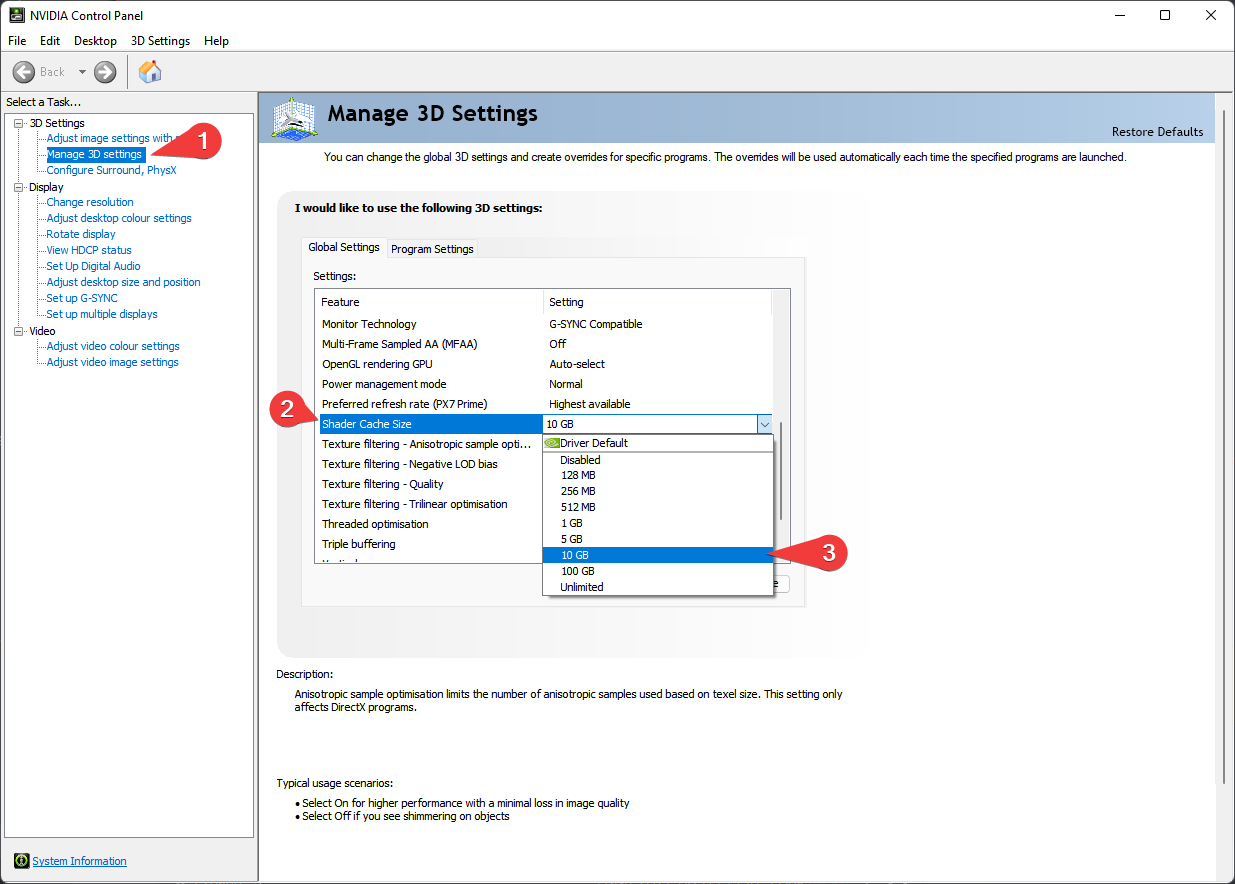
For NVIDIA users, it is recommended to boost the size of the shader cache. These settings have been shown to improve stability, while it may not be entirely necessary, it is still recommended.
To do this:
- Right-click on your desktop and select
NVIDIA Control Panel - Navigate and click
Manage 3D Settings - Scroll down the Global Settings tab until you see Shader Cache Size
- Double-click
Driver Defaultto the right of Shader Cache Size and select10 GB - Click
Applyin the bottom right hand corner - Exit out of the application
A legally obtained copy of Baldur's Gate 3 is required to play the modlist. While a Steam global copy is the safest, and what the list has been tested with, any copy of Baldur's Gate 3 should work.
It is highly recommended to have a clean installation of Baldur's Gate 3 before installing the modlist, this is to decrease the likelihood of any issues caused by unwanted or outdated modsettings.lsx or Mod.io subscriptions from previous playthroughs.
- Cleaning the installation
- Option A: Nuke BG3, unstall the game completely.
- Option B: Verify integrity of game files, this will often remove non-vanilla files in the installation folder and will take a much shorter time.
- Regardless of the option that was chosen above, navigate to your
%localappdata%\Larian Studiosfolder and delete theBaldur's Gate 3folder.
- This should take care of any errant files left over from previous playthroughs that could potentially cause issues with the list and is especially important for preventing data mismatches that will block multiplayer.
- If installed previously, remove the BG3 Script Extender if it was previously installed manually (delete this file if it exists:
~\Baldurs Gate 3\Root\bin\DWrite.dll). This should already have been removed if the installation was nuked. - After reinstalling, launch the game (vanilla from your app of choice) and reach the main menu once to generate all of the necessary folders and filepaths that MO2 and BG3MM require. When you reach the main menu, quit and continue this ReadMe.
Warning
If you have your Steam Library in Program Files, read this article by LostDragonist. Locations such as Desktop, Documents, Downloads, OneDrive, etc. will cause issues with installing and playing the list.
- Change Baldur's Gate 3 so it does not automatically update.
- Right click on Baldur's Gate 3 and click on properties, untick the
Enable Steam Overlay while in-game.. - While in the properties, navigate to the Language tab and set the Language to
English.
I do not have any experience with GoG at this time. I will flesh out this section in the future if required.
Once you have completed the pre-installation section, follow these steps to install Wabbajack:
-
Create an empty folder named
Wabbajackon the root of your drive, such asC:\Wabbajackfor example.- DO NOT place it in Program Files, User folders (such as Desktop, Documents, Downloads, OneDrive, etc.), in your Skyrim's Steam folder, or in any folders related to the modlist itself (the downloads or install folder).
- The
Wabbajackfolder does not need to be on an SSD, but it makes installing faster. You can set this location to be on an HDD for the sake of saving space.
-
Download the latest version of Wabbajack and place the
Wabbajack.exefile inside the Wabbajack folder you created in Step 1. -
Double-click the
Wabbajack.exefile that is now inside your Wabbajack folder to set up the program.
Important
The list requires Wabbajack version 4.0.0.0 or later. Installing the modlist on older versions of Wabbajack will result in issues.
Caution
A legal copy of Baldur's Gate 3 is required. Pirated copies of the game will cause the installation to fail and even if you manage to somehow get around Wabbajack's built-in piracy prevention measures, BG3SE does not work with the cracked exes.
Downloading and installing Bingus's Gate 3 can take a while depending on your internet connection, PC specs, and if you have Nexus Premium. Without Premium, you will need to manually click the Slow Download button for each mod.
To install Bingus Gate 3, complete the following steps.
- Download the
Bingus Gate 3.wabbajackfile from the pins in the #bingusgate-general channel of the discord. - Place the downloaded file inside of the
downloaded_mod_listsfolder within your Wabbajack root folder (e.g.,C:\Wabbajack). - Open Wabbajack and click
Browse lists. - In the top right corner of the Wabbajack App, click
Install from disk. - Navigate to the
downloaded_mod_listsfolder and selectBingus Gate 3.wabbajack. - Set the
Installation Locationto a folder such asC:\BingusGate3.- DO NOT place it in Program Files, User folders (such as Desktop, Documents, Downloads, OneDrive, etc.), or in your Baldur's Gate 3 Steam folder
- The
Downloads Locationdoes not need to be on an SSD, but it makes installing faster. You can set this location to an HDD for the sake of saving space.
- Press the
Installbutton. - Turn on your favorite show or a nice long video essay as Wabbajack does its thing. Alternatively read through this readme again.
- If the installation is successful, then rejoice and move onto post installation. If the installation is unsuccessful, follow the tips below or the discord server for support.
It is possible that you may encounter an error with Wabbajack when installing. Some common issues are listed below.
Wabbajack couldn't find my game folder!
Either buy the game or re-read the Pre-Installation section.
My antivirus reports a virus with the program or modlist!
Windows 10/11 may automatically quarantine a key file which is needed for Mod Organizer. You can fix this by adding an exclusion for Mod Organizer in windows defender.
Sanity check error extracting file:
Wabbajack will sometimes have issues extracting files if they use special characters. If you encounter this issue in a Wabbajack log, please try the steps down below:
- Press
Win Key + R. - Type
intl.cpland hitENTER. - Navigate to Administrative and click
Change system locale.... - Change the Current system locale: to
English (United Kingdom). - Uncheck
Beta: Use Unicode UTF-8 for worldwide language support - Click
OK - Restart your PC and rerun the Wabbajack installer.
Wabbajack is crashing during the installation!
If you find yourself struggling to run Wabbajack without it crashing, freezing up, or blue-screening your PC, please try lowering Wabbajack's resource usage with these steps:
- Open Wabbajack.
- Click the Settings button in the bottom left corner of the Wabbajack window.
- Under the Performance box, lower each number for each category to half of what it is currently set.
- Continue Installation.
[!TIP] It is suggested to have a program installed on your PC that can open
.jsonfiles, like Notepad++ or Visual Studio Code
Warning
Antivirus programs are notorious for false flagging MO2's Virtual File System, which can and will cause crashes and other problems. Antivirus programs like BitDefender, Norton, and Webroot are especially aggressive, and you will need to fully remove them from your PC in order to actually launch the game through MO2. It is 2024, Windows Defender and being smart online is more than adequate to protect yourself from malicious software.
If you use Windows Defender, it is advised that you set up an exception for the modlist.
Setting up Windows Defender Exceptions:
- Press the Windows Key.
- Type "Windows Defender" in the search bar and select "Windows Security".
- Click on "Virus & threat protection" in the left pane.
- Click the "Manage settings" option under "Virus & threat protection settings".
- Scroll down to "Exclusions" and click "Add or remove exclusions".
- Windows Defender will prompt you with a run as administrator screen, just hit yes.
- Click the "Add an exclusion" button at the top and choose "Folder".
- Navigate to your Install folder for the list and click "Select Folder".
- (OPTIONAL) You can repeat these steps for the other executables:
- ModOrganizer.exe (
[Path to Modlist]\ModOrganizer.exe)
- ModOrganizer.exe (
TBD
- Head over to your modlist installation folder (e.g.
C:\BingusGate3), locate an executable namedModOrganizer.exe, and launch it.
Important
If you installed Bingus Gate 3 to a different storage device than where you installed Baldur's Gate 3 itself and the game fails to launch, ensure that Root Builder is set to Copy and not Link (MO2 Puzzle Piece Icon > Root Builder > Root Builder).
- At the top right, you should be able to switch between the DX11 nad Vulkan version of the game. The DX11 version is suggested.
- Hit
Runon thePlay Baldur's Gate 3executable in MO2.
Caution
FOR THE LOVE OF AO, DO NOT CLICK THE UNLOCK BUTTON!
- Once you have arrived to the Main Menu, verify all your mods have loaded by clicking on the
Mod Managerbutton (underMultiplayer) and navigating toInstalled. If you see a long list of mods (andMemory Usedvalue ~20GB), then you should be good to go! - Return to Main Menu and navigate to
Optionsand thenVideoand ensure that your Animation Level of Detail is set to High.
Warning
You must change Animation Level of Detail to High in your Video settings, otherwise any heads added or changed by mods will suffer from visual bugs and animation issues. All other graphic settings can be adjusted according to your PC specs.
Please do not use existing campaigns on Bingus Gate 3, as you will likely encounter issues (or more likely won't be able to load them). When starting a new campaign, please utilize Custom Difficulty in order to have the intended experience, while Honor Mode should work fine, I do not recommend it for a modded playthrough.
In order to have the appropriate and intended settings that the list was balanced for, please view the images below:
Note
Remember to set the Ruleset to Honour Ruleset, this setting cannot be changed mid-campaign, and many combat-related settings will not work as intended without Honor Mode's changes to enemies, mechanics, and game rules.
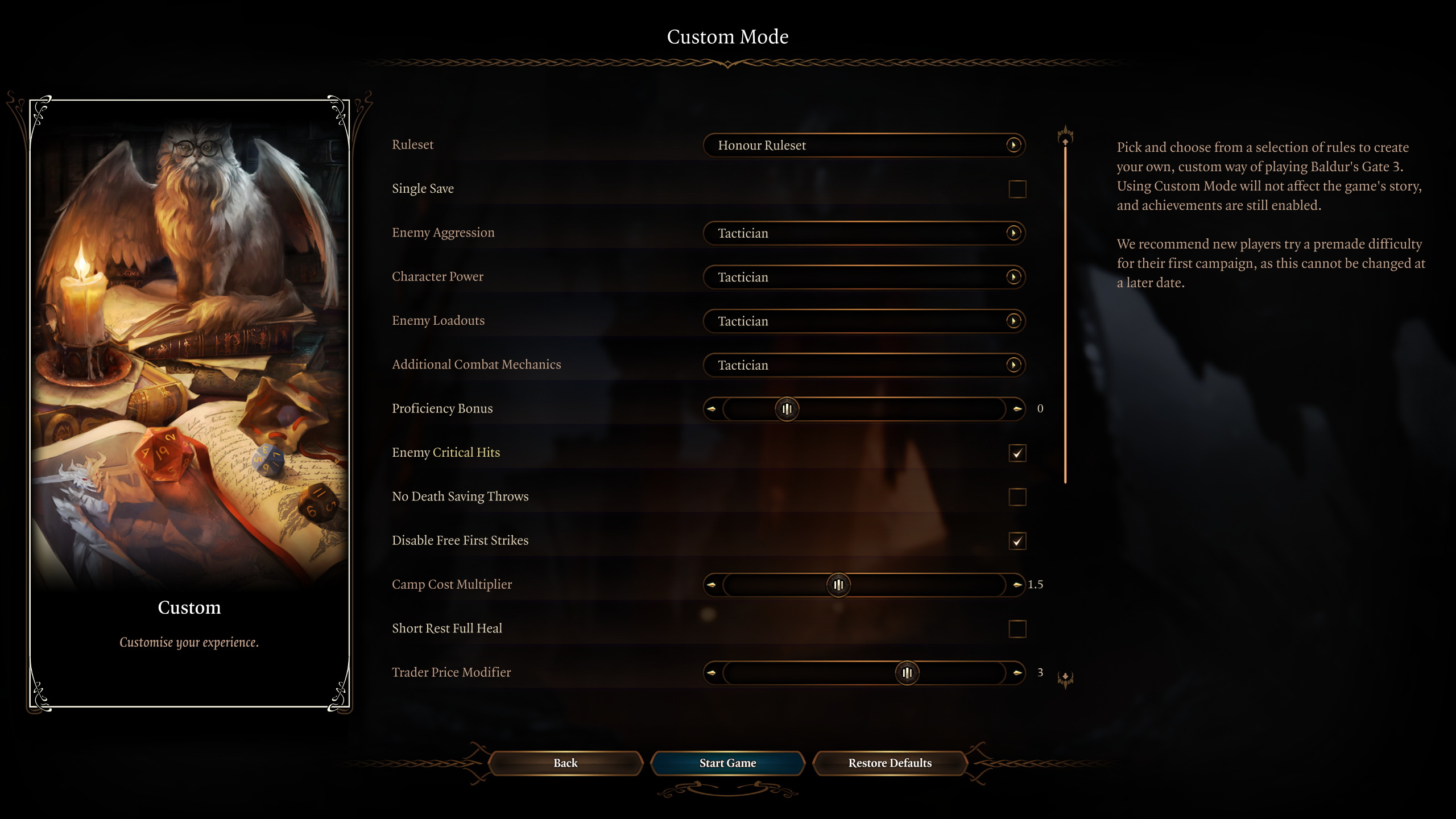
The settings:
- Ruleset: Honour Ruleset
- Single Save: Disabled
- Enemy Aggression: Tactician
- Character Power: Tactician
- Enemy Loadouts: Tactician
- Additional Combat Mechanics: Tactician
- Proficiency Bonus: 0
- Enemy Critical Hits: Enabled
- No Death Saving Throws: Disabled
- Disable Free First Strikes: Enabled
- Camp Cost Multiplier: 1.5 (Recommended 1.5 - 2.0)
- Short Rest Full Heal: Disabled
- Trade Price Modifier: 3 (Recommended 3.0 - 4.0)
The remaining settings (such as Multiclassing, etc.) can be set according to personal preference.
This section of the guide is ripped 1:1 from Listonomicon's install instructions. This section of Listonomicon's install guide was originally written by Kmnder and edited by Ajax, I have tweaked it slightly for Bingus Gate 3.
Caution
Failing to follow these instructions will lead to problems (e.g., Honor Mode ruleset not being applied, mod version mismatches, etc.) and you will not receive the intended experience.
- After installing Bingus Gate 3, if enabling custom or optional mods, the host should generate a fresh
ModsCache.jsonandModSettings.lsxand share it with all other players to guarantee BG3 loads the same mods, in the same order.
i. To generate a newModsCache.jsonandModSettings.lsx, navigate to the Profiles folder in your MO2 directory (e.g.,C:\BingusGate3\profiles).
ii. Select the Mod Organizer 2 profile you intend to play multiplayer with (e.g.,Bingus Gate 3).
iii. Delete theModsCache.jsonandModSettings.lsxfiles.
iv. After deleting these files, launch the game in order for a new set of files to be generated. - All players should start a new game with the same Custom Game rules as listed above.
- The host should then create the real character that they intend to play while all other players should create a dummy character.
- For dummy characters, do not bother making any real choices as you will not be playing these characters. Simply click through character customization so that you can start on the Nautiloid.
- Once everyone has loaded into their game, the host should invite all other players. At this point, everyone (besides the host) should be prompted to make their real characters for the campaign.
- When continuing a Multiplayer Campaign, ensure that everyone (besides the host) loads into their dummy save. Once everyone has loaded in, the Host can then invite everyone to the same game.
Kmnder: "I've invited through clicking Multiplayer+ and then Steam inviting. But it has worked 100% of the time so far."
Versioning for the list will adhere to the following format: MAJOR.MINOR.PATCH.
MAJOR: Any release with a number change here will be considered a major update as at least 1 area of the list was massively overhauled. These updates with NEVER be save safe.MINOR: Any release with a number change here will be considered a minor update, these updates will not be save safe, unless otherwise specified.PATCH: Any release with a number change here will be considered a patch, these updates should be save safe and will be used primarily for bugfixes.- In some rare cases, a fourth number will be used to designate a
HOTFIX. These will only be utilized in cases where the list is recompiled with no other changes.
Updating is like installing the list. Simply make sure your paths are the same and tick the overwrite installation button. Please keep in mind any mods you have added will be deleted when updating. To make sure that Wabbajack does not delete your added mods upon updating, prefix your mods with [NoDelete].
Important
Saves can be continued across Save-Safe updates. Updates will be indicated whether or not they are Save-Safe on the Changelog. It is suggested that you backup your saves before updating if you plan on continuing them.
Simply delete the Bingus Gate 3 folder. Congratulations, you have uninstalled Bingus Gate 3.
Please check the FAQ first if you have any issues.
- YOU for reading this.
- Bingus for making the bulk of the baseline of the modlist.
- aljo for configuring the gameplay portions of the modlist.
- iAmMe27 for general modding, documentation, and WJ assistance.
- The Waking Dreams Helpers for their time and effort playtesting, providing feedback, and support assistance.
- Everyone who participates in playtesting and provides feedback during development builds.
- JustThatKing, jdsmith2816, and Total for their feedback and assistance when I started modding.
- Bethesda Game Studios for Skyrim and the Creation Kit.
- Halgari and the WJ Team for the amazing platform that is Wabbajack.
- Ajax for Listonomicon Again and the Most Comprehensive Combat Extender Config for UNSO, which this list is shamefully derivative of.
- BaldursGoonsack and Syrchalis as their mods make up much of the core of the gameplay and rebalancing within the list.
- All other mod authors whose work is included, this list would not be possible without the greater modding community.
- Mgde12, D1Z4STR, 半蔵 内倉, Kepler, Hencoat, nostalgic.wave, EnragedHamster, unclemestor, snowpeachcherry, Charlie Kriech, Durgenage, Pacifist Fist, Don Maker, Russell Collins, Oresh, Danimals, Monko, Anehum, hildocean, The Unattested Wombat, Ola Nordman, Regista433, Jaron Scotland, King_Sheogorath, TheRyge, Shakes, highchae, Robbie, cowbellhero55, Geero, JAYDENCITO, Nehellena, Mysthey, Echo, Scott MacLeod, Exanima, Thundertube, LELUGOLELU, ravenlake, Paultinich, icaruscien, Oracraen, Lykk3, VillainousJ, Micheal Hamm, netwolff, Nico, G1Broheim, sweeper240, calcteacher, Ark, Zenity, Zolleu, medmen, jaimey19, Redwyne, Thrash Wizard, Baumalein, Serge, lorifey, TripleDoubleRuss0, De Wijswolf, FightForge, NaNo0408, DrukenReaps, Yunoronio, Diseenith, Adam Wasiura for support on patreon.
- adorion1981, aexilkv, Alex H., AlphaGhost47, ambo, Ananta, annakins, Atlas, bigmact, Blade, BlueBeagle, Bubborus, Chef Nicnaq, Child_of_Sithis, Danimals, derbaer, derkaenaz, DevZan, Don Maker, doombot117, E2J, Elendil, EnragedHamster, FalseRealism, Felivath, Forsaken Jing, freshr, FutureWorld, Gous, Gremlin, hedich, Hencoat, Jeremy, Joey, JoeyFlow, JollyTheRancher, Julian, JXEYES, Kannon555, kanpeki, Kathie Murphy, Kiqing, Lunaros, Maelstrom, Makk, Mgde12, Mike, Modux, Monko, nana, Nehellena, netwolff, orca, paulogrupp, Psyguyy, Recklessness, rezthe0one, Rick, Roxiie, SaddestNoddles, shallow_green, skylion, SkullManEXE, Soloist, Steve, Stryn, Tamanaki, TazerReloaded, thefrogwithnoname, thepotion, Thomas Brack, Tom Curran, tyler, tyrotoxism, Victoriam, Won Pham, WoWZaton, Xtremza, Zhijia, and zidan for their support via Ko-fi.