I've had to take a short break from taking requests. I'll be back soon with updates for any outstanding requests.

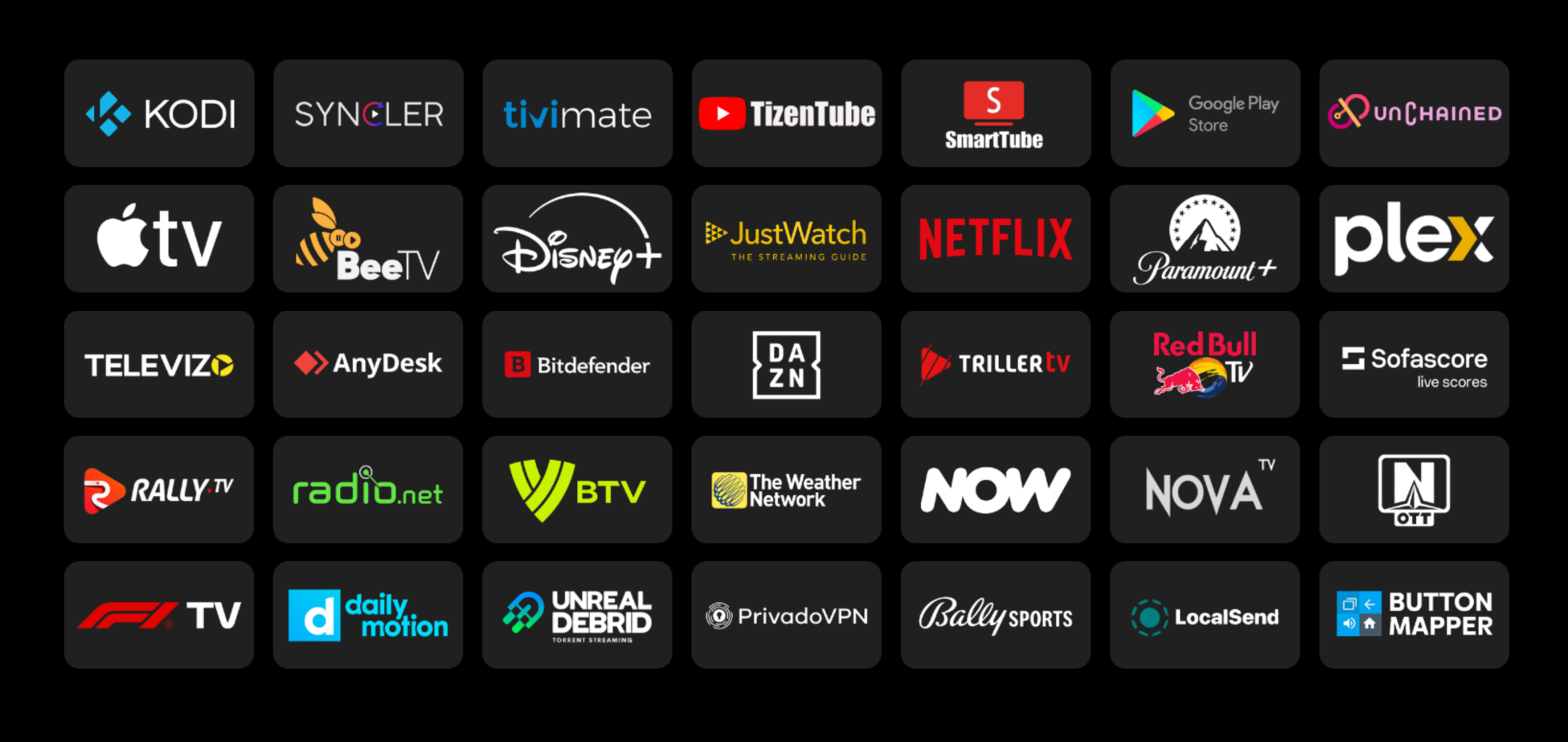
The Projectivy Icon Pack is designed specifically for use with the Projectivy Launcher application. Now with over 800 icons.
Created and based on the Blueprint project—which made the icon pack possible—it’s easy to apply, with icons configured to automatically assign to all supported applications, saving you the time and effort of manually selecting icons for each app.
All icons are custom-made to deliver a modern and consistent look, with transparent backgrounds that enhance visual consistency and allow you to assign your preferred background colors in the launcher.
Tip: For the best results, it’s recommended to use a dark background for icons, as the icons are designed to look their best on darker backgrounds.
Note: The Projectivy icon pack is designed and tested using Android / Google TV. If you are using a TV device that is running a mobile variant not designed for TVs, some icons may not auto-assign due to some applications using different activities for mobile operating systems. In this scenario, you may have to assign them manually.
Download using downloader code 9257057 or obtain the APK from here.
Once installed, assign the icon pack directly in the icon pack application by selecting the apply button, or in the Projectivy Launcher by following these steps:
- From the launcher's menu, select Projectivy Launcher Settings.
- Select Appearance.
- Select Cards.
- Select Icon Pack.
- Select Projectivy Icon Pack.
The easiest way to update the application is from within the in app updater. Once an update is released, you will see a prompt upon opening the application that a new version is available. You can still download the APK directly from GithHub or via Downloader if you prefer to do so.
Note: When a new version has been installed you will need to apply the icon pack again to see the changes.
To further enhance the icon pack’s look, you can change the background color of the cards:
- From the Projectivy Launcher menu, select Projectivy Launcher Settings.
- Select Appearance.
- Select Cards.
- Select Background color
If you notice that an icon is missing for an application that is compatible with TV devices, you can submit a request for it to be added to the Projectivy Icon Pack here.
Before submitting a request, please check that the icon is not already included in the pack or has not already been requested. A full list of supported application icons can be found here.
Note: Whilst we aim to fulfil all requests, there is no guarantee that every request will be completed, and no specific timeframe can be provided for when requested icons may be added.
Whilst I’ve taken extra care to map and test each icon, there is always the possibility that something may have been missed. If you notice that any applications do not automatically have their icons assigned, first ensure that you are running the latest version of the application and have restarted your device. If the issue still persists, please raise a mapping issue here.
Note: Mapping is only configured and tested on android/google tv devices. Devices running unofficial mobile variants wont be officially supported. It also may not be possible to automatically map every icon due to regional and device differences with app package names and activities. In these scenarios you can still apply the icons manually from within the launcher.
Not all icons are perfect, and sometimes a better design can enhance the overall look and feel of the app. If you’ve discovered or created a design that you believe improves an existing icon, please create a ticket and attach an image of the proposed icon, ensuring that it is of high quality, clear, and sharp. You can submit an icon improvement request here.
Note: Icon improvement requests are considered a lower priority than requests for new icons. Not all improvement suggestions may be accepted, as they can be based on personal preference and may not actually be an improvement.
There are a couple of small squirks that are out of my control as its down to the launcher's behavior, but they are easy to work around and wont cause too much of an issue.
- "I have applied the icon pack for the first time and my old icons are still showing".
This will happen if you've manually assigned your own icons to each application. The icon pack won't override these so you will need to manually reset the icon for each application.
- "New icons added to the icon pack are not assigned to my apps".
When updating the icon pack, new icons may not be visibly assigned to applications. You will need to apply the icon pack again following the steps in the "how to download and install" section of this document.
- "Updated icons are not showing. I still see the old revisions".
On occasion after updating the icon pack, the projectivy launcher cache may still show older icons of those icons that were replaced with improved versions. Restarting your device should solve this.
- "Icons against applications in the "all apps" menu have the incorrect icons next to them".
I feel this may be a bug with the launcher itself. After applying/updating the icon pack, on occasion the projectivy launcher cache may show the wrong icons against applications in the "all apps" menu. Restarting your device should solve this.
- "One of my apps just updated, and now the icon has reset and the app won’t open."
This happens because the app developer changed the apps activity, so the icon is still mapped to an activity that no longer exists within the application. I've mentioned this to the projectivy dev, so hopefully it will be something that can be fixed in the launcher.
-
Remove the app from your category
– Go into your category list and delete the app entry. -
Add it back again
– The application should now open correctly.
– You can manually reassign the icon if needed. -
Raise a mapping issue on GitHub
– Report the issue so the auto-mapping can be updated and restored in future releases.
The Projectivy Icon Pack will always remain free for everyone to enjoy. That said, creating custom icons and mapping them to the right app activities can be a little time-consuming. While donations are never expected, a small gesture is always appreciated for the time and effort that goes into keeping the pack fresh and updated. Your support helps keep me motivated to continue adding new icons and fulfilling icon requests,so the pack can keep growing and improving for all users. If you’d like to buy me a coffee, it would mean a lot, but just using and enjoying the icon pack is already awesome in itself.
-
LoganWolverineX – for assisting with testing, creating icons, and for planting the seed for this project (thanks, I guess 😏).
-
Spocky – for creating a brilliant launcher that was the motivation for the entire project.
-
Blueprint team – for providing the base for the icon pack.
Note: I am not affiliated with the Projectivy Launcher. This is just one of my mini projects outside of my day-to-day work. I'm a happy user, and big thanks to the developer for providing such a great launcher!

