oscmixQt
The Qt frontend (oscmix-qt) is a native C++/Qt6 desktop application for controlling RME Fireface audio interfaces (currently in CC Mode only). It replaces the GTK UI with a single binary, assisted by oscmix, alsarawio/alsaseqio or coremidiio that runs on Linux and macOS.
The core idea is to give Linux users in particular a single tool that handles both local USB-connected devices and remote TotalMix FX instances simultaneously - bridging the gap caused by RME's official software not being available on Linux. macOS users benefit from the same unified interface. Both connection types are fully interoperable: you can switch between a locally attached Fireface and a remote TotalMix FX instance from the same device selector without restarting the application.
Currently only a subset of RME devices are supported by oscmix (see this repos README.md). Devices not yet implemented can still be controlled remotely if TotalMix FX is running on another machine (e.g. a Windows or macOS host) and using the RME drivers. A Windows build is planned but not the current focus.
Early preview — approximately 20% of the planned feature set is implemented. Expect rough edges. Feedback and bug reports are welcome.
Note
Not all features described here are working yet. I've documented them already here to save time (as they will come soon).
- Requirements
- Installation
- Main Window Layout
- Channel Strips
- Control Strip
- FX Panels
- Room EQ
- Settings Dialog
- OSC Debug Log
- Device Management
- Building from Source
macOS
- macOS 12 Monterey or later (Apple Silicon and Intel)
- oscmix-supported RME Fireface connected via USB (or a TotalMix FX connected device on remote host)
- No additional drivers required (oscmix uses coremidiio - which uses CoreMIDI)
- The App inside the dmg bundles all Qt libraries - no system Qt installation needed
Linux
- x86_64 or aarch64 (ARM64)
- ALSA (
amidi/aconnectmust be in$PATH) - RME Fireface connected via USB (or a TotalMix FX connected device on remote host)
- The AppImage bundles all Qt libraries - no system Qt installation needed
TotalMix FX mode (optional)
- RME TotalMix FX 2.1 or later with Global OSC enabled
- Network access between the machine running TotalMix FX and the machine running oscmix-qt
Pre-built binaries are published as nightly releases on the Releases page.
| Platform | File |
|---|---|
| macOS Apple Silicon | oscmix-qt-macos-arm64.dmg |
| macOS Intel | oscmix-qt-macos-x86_64.dmg |
| Linux x86_64 | oscmix-qt-linux-x86_64.AppImage |
| Linux ARM64 | oscmix-qt-linux-aarch64.AppImage |
macOS: Open the DMG, drag oscmix-qt.app to Applications, and launch it. The app bundles oscmix and coremidiio inside the application package — no separate installation is needed.
Linux: Make the AppImage executable and run it directly:
chmod +x oscmix-qt-linux-x86_64.AppImage
./oscmix-qt-linux-x86_64.AppImage
The AppImage bundles oscmix, alsarawio, and alsaseqio alongside the Qt libraries.
Note for Linux users: Snap-installed Chromium restricts access to MIDI devices. If you previously used the Web UI in a Snap browser, the Qt frontend avoids this restriction entirely.
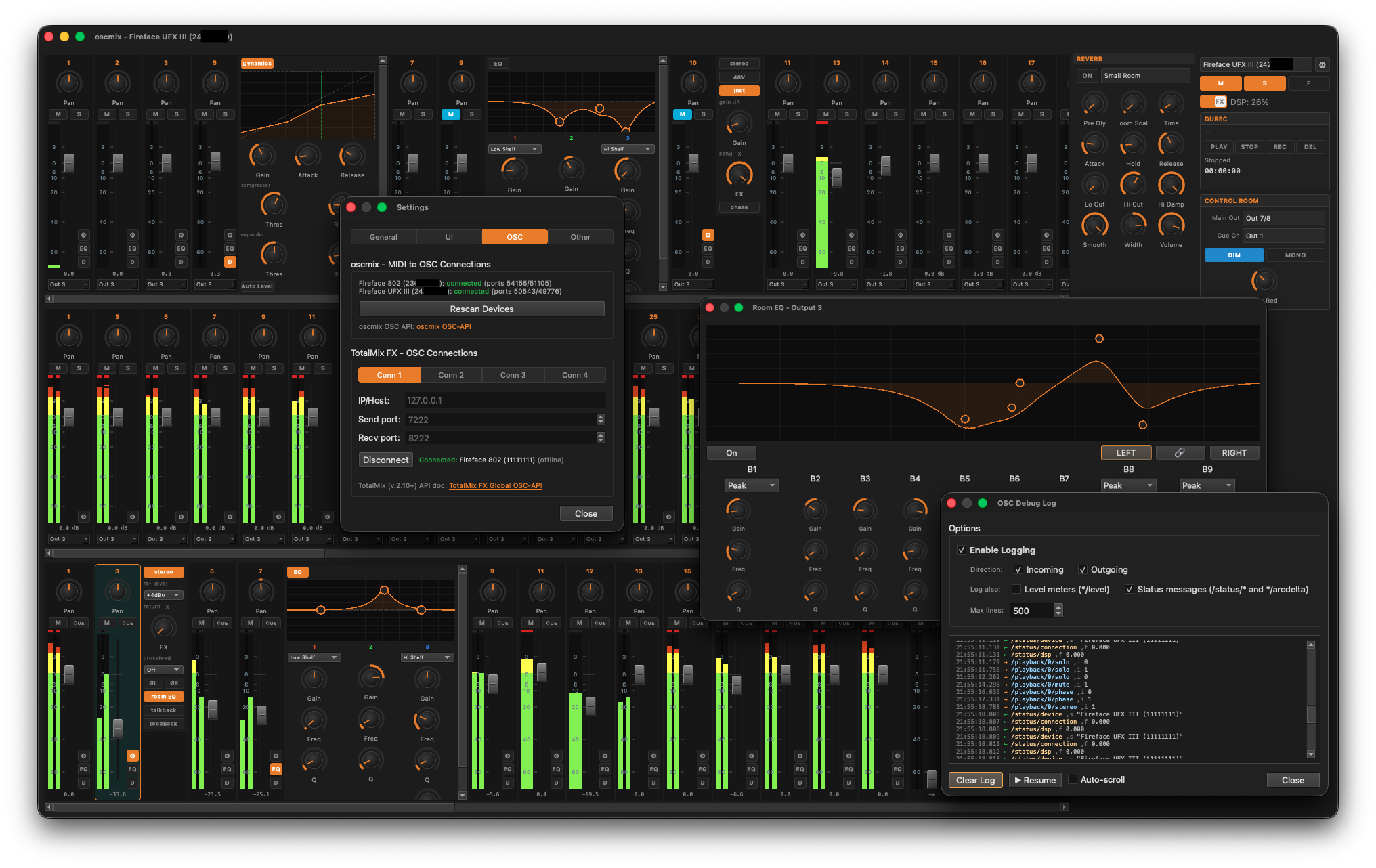
The main window mirrors the three-row layout of TotalMix FX:
┌─────────────────────────────────────────────────┬──────────────┐
│  Inputs (horizontally scrollable)               │              │
├─────────────────────────────────────────────────│ Control      │
│  Playbacks (horizontally scrollable)            │ Strip        │
├─────────────────────────────────────────────────│              │
│  Outputs (horizontally scrollable)              │              │
└─────────────────────────────────────────────────┴──────────────┘
When the FX toggle is active, Reverb and Echo panels slide in to the left of the Control Strip, aligned with the Input and Playback rows respectively.
Each row contains one channel strip per channel. Strips scroll horizontally when the window is too narrow to show all channels at once.
Each channel is represented by a fixed-width strip. Clicking the S (Settings), EQ, or D (Dynamics) button opens a side panel that slides out to the right of the strip. Only one panel can be open per strip at a time.
EQ and Dynamics panels are available on Input and Output channels only. Playback channels have Settings only.
| Control | Description |
|---|---|
| Channel name | Editable text field at the top. Changes are sent to the device via OSC. |
| Level meter | Peak/RMS bar meter. Shows clip indicator. Stereo channels display a dual-bar meter. |
| Fader | Volume fader, range −65 dB to +6 dB. Current value shown in dB below the fader. |
| Pan knob | Balance/pan. Center-click or double-click resets to center. |
| M button | Mute. |
| Cue button | Cue send enable. |
| S button | Opens the Settings Panel. |
| EQ button | Opens the EQ Panel. (Input/Output only) |
| D button | Opens the Dynamics Panel. (Input/Output only) |
The Settings panel slides out to the right of the strip when the S button is pressed. Available controls depend on channel type.
All channels:
| Control | Description |
|---|---|
| Stereo button | Links this channel with the next channel as a stereo pair. The pair shares a combined fader and level meter. Phase controls split into L/R when stereo is active. |
| FX knob | FX send level (inputs/playbacks) or FX return level (outputs). |
Input channels (additional):
| Control | Description |
|---|---|
| Ref Level | Selects the input reference level from device-reported options. |
| Gain knob | Input gain, range reported by the device (e.g. 0–65 dB for mic preamps). |
| 48V button | Phantom power. Only shown when the channel supports it. |
| Inst button | Instrument / Hi-Z input mode. Only shown when supported. |
| Width knob | Stereo width. Stereo pairs only. |
| MS button | Mid/Side processing. Stereo pairs only. |
| ØL / ØR buttons | Phase invert left / right. Stereo pairs only. |
| Ø button | Phase invert. Mono channels only. |
Output channels (additional):
| Control | Description |
|---|---|
| Ref Level | Output reference level. |
| Crossfeed | Crossfeed amount selector. |
| Room EQ button | Opens the Room EQ dialog for this output. |
| Talkback button | Talkback enable for this output. |
| Loopback button | Loopback enable for this output. |
The EQ panel provides a 3-band parametric EQ with low cut, available on Input and Output channels.
A frequency response curve is drawn in real time above the band controls. Bands can be adjusted by dragging the handles on the plot directly, or via the knobs below.
| Control | Description |
|---|---|
| Enable button | Bypass/enable the entire EQ section. |
| Band type (bands 1 and 3) | Filter type selector (Peak, Low Shelf, High Shelf, Low Pass, High Pass). |
| Gain knob | Band gain, ±20 dB. |
| Freq knob | Center/corner frequency, 20 Hz – 20 kHz. |
| Q knob | Bandwidth, 0.4 – 9.9. |
| LC button | Low cut enable. |
| Slope selector | Low cut slope (6, 12, 18, 24 dB/oct). |
| LC Freq knob | Low cut frequency. |
The Dynamics panel provides a compressor and expander with auto-level, available on Input and Output channels.
A gain reduction curve is displayed above the controls.
| Control | Description |
|---|---|
| Enable button | Bypass/enable the entire Dynamics section. |
| Gain knob | Output gain, ±30 dB. |
| Attack knob | Attack time, 0 – 200 ms. |
| Release knob | Release time, 100 – 999 ms. |
| Compressor | Threshold (−60 to 0 dB), Ratio (1:1 – 10:1). |
| Expander | Threshold (−99 to +20 dB), Ratio (1:1 – 10:1). |
| Auto Level button | Enable auto-level. |
| Max Gain knob | Auto-level maximum gain, 0 – 18 dB. |
| Headroom knob | Auto-level headroom, 3 – 12 dB. |
| Rise Time knob | Auto-level rise time, 0.1 – 9.9 s. |
The Control Strip is a fixed-width panel docked to the right side of the main window.
A dropdown at the top of the strip lists all currently managed devices. The active device is selected here; the main window switches to that device's channel layout immediately.
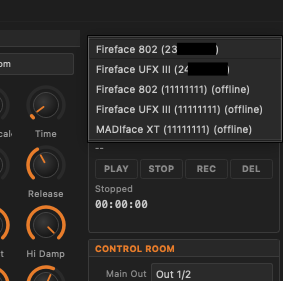
Color coding in the dropdown indicates device type and status:
- Orange — oscmix device (connected via MIDI bridge)
- Gold — TotalMix FX device (connected via OSC/UDP)
- Grey / (offline) suffix — device known but currently not reachable (auto-reconnect pending or failed)
The gear button (⚙) to the right of the dropdown opens the Settings Dialog.
Three buttons below the device selector apply globally to the active device:
| Button | Description |
|---|---|
| M | Global Mute — mutes all channels simultaneously. |
| S | Global Solo — solos all channels simultaneously. |
| F | Function key (device-specific). |
A slide toggle enables or disables the FX panels (Reverb and Echo). When toggled on, the Reverb and Echo panels animate in from the right. The DSP load percentage for the active device is shown next to the toggle.
| Control | Description |
|---|---|
| Main Out | Selects the output pair used as the main monitor output. |
| Cue Ch | Selects the cue channel. |
| DIM button | Reduces monitor volume by the configured dim amount. |
| MONO button | Sums the monitor output to mono. |
| Dim Reduction knob | Sets the dim reduction level in dB. |
DURec (Direct USB Recording) transport controls. Available on devices with a USB storage port (e.g. Fireface 802, UFX III).
| Control | Description |
|---|---|
| PLAY | Start playback. |
| STOP | Stop playback or recording. |
| REC | Start recording. |
| DEL | Delete current file. |
| Status display | Shows current transport state (Stopped, Playing, Recording). |
| Position / time | Current playback/record position and elapsed time. |
| File info | Current file name, available storage space. |
The FX panels slide in to the left of the Control Strip when the FX toggle is active. They are global per device and not per-channel.
The Reverb panel aligns with the Input channel row.
| Control | Description |
|---|---|
| Enable button | Bypass/enable reverb. |
| Type selector | Reverb algorithm (Small Room, Medium Room, Large Room, Halls, Ambience, etc.). |
| Pre Delay knob | Pre-delay time. |
| Room Scale knob | Room size. |
| Time knob | Reverb decay time. |
| Attack knob | Attack shape. |
| Hold knob | Hold time. |
| Release knob | Release time. |
| Lo Cut knob | Low-frequency cut for the reverb tail. |
| Hi Cut knob | High-frequency cut. |
| Hi Damp knob | High-frequency damping. |
| Smooth knob | Smoothing amount. |
| Width knob | Stereo width of the reverb output. |
| Volume knob | Reverb return level. |
The Echo panel aligns with the Playback channel row.
| Control | Description |
|---|---|
| Enable button | Bypass/enable echo. |
| Type selector | Echo algorithm (Stereo Echo, Stereo Cross, Pong Echo, etc.). |
| Delay knob | Delay time. |
| Feedback knob | Feedback amount. |
| Hi Cut knob | High-frequency cut on feedback path. |
| Width knob | Stereo width. |
| Volume knob | Echo return level. |
The Room EQ dialog is a 9-band parametric equalizer applied to an individual output channel for acoustic room correction. It opens as a floating dialog from the Room EQ button in an output channel's Settings panel.
The dialog operates on /output/{n}/roomeq/... OSC paths. It includes:
- A full-range frequency response plot with draggable band handles
- 9 bands with Gain, Frequency, and Q knobs per band
- Filter type selector on bands 1, 8, and 9
- L/R channel selection with optional stereo link
- Bypass button
The Room EQ dialog is non-modal and can remain open while the main window is used normally.
The Settings dialog is opened via the gear button (⚙) in the Control Strip. It opens on the OSC page by default.
Navigation uses a segmented button bar with four pages: General, UI, OSC, Other.
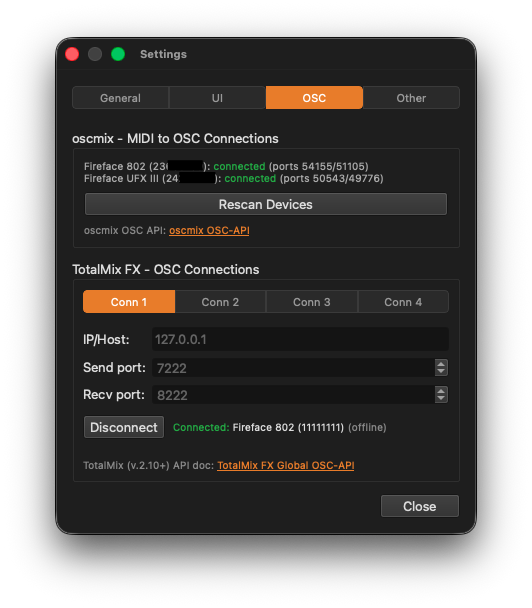
The oscmix - MIDI to OSC Connections group shows all RME devices detected via MIDI scan, with their current connection status and port numbers.
- A green connected label with port pair (e.g.
ports 54155/51105) indicates an active oscmix bridge process. - If a device disappears (USB unplug, process crash), the app attempts auto-reconnect up to 3 times before marking it offline.
- Rescan Devices re-runs the MIDI scan and launches new oscmix instances for any newly found devices. Existing TotalMix FX connections are preserved across rescans.
- The oscmix OSC-API link opens the oscmix OSC API reference in the wiki.
The TotalMix FX - OSC Connections group supports up to four simultaneous TotalMix FX connections (Conn 1 – Conn 4), each in its own tab.
Each slot has:
| Field | Description |
|---|---|
| IP/Host | IP address or hostname of the machine running TotalMix FX. Use 127.0.0.1 for localhost. |
| Send port | Port oscmix-qt sends to (must match TotalMix FX "Port incoming"). Default: 7222. |
| Recv port | Port oscmix-qt listens on (must match TotalMix FX "Remote Controller Port outgoing"). Default: 8222. |
| Connect / Disconnect | Toggle connection for this slot. |
| Status label | Shows the current state: connecting, connected with device name, offline. |
Connection settings are persisted per slot via QSettings and auto-reconnected on startup if they were connected when the app was last closed.
A TotalMix FX Global OSC-API link opens the TotalMix FX OSC protocol reference in the wiki.
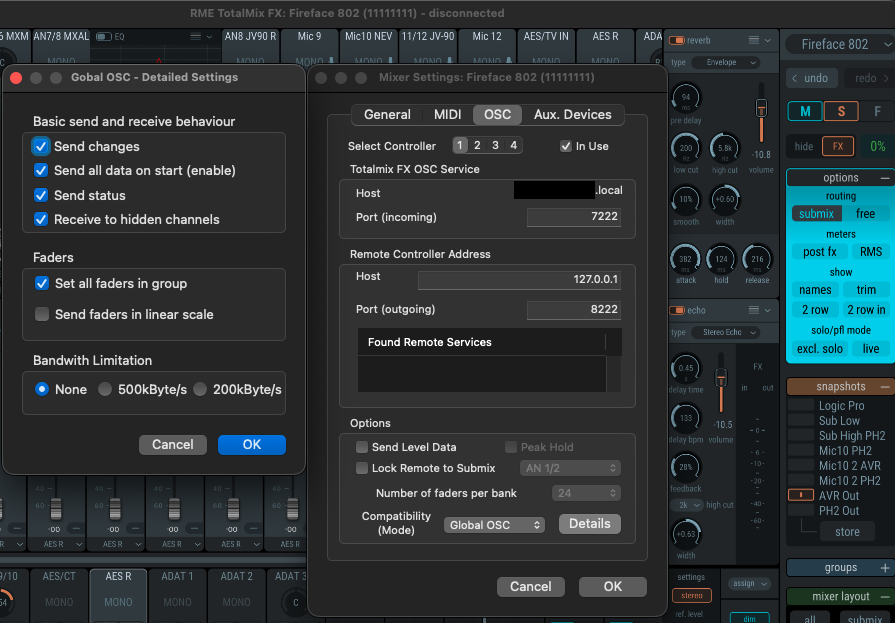
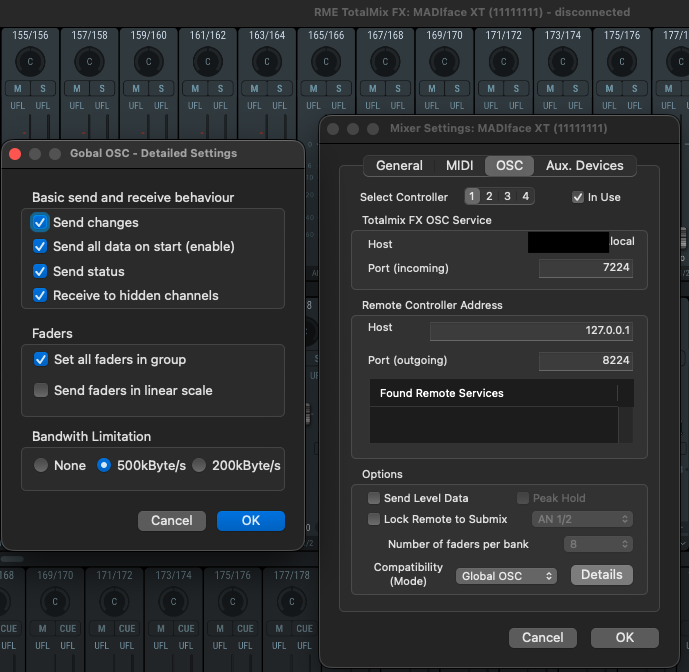
In TotalMix FX, go to Mixer Settings → OSC and configure Global OSC mode:
- Set Compatibility Mode to Global OSC
- Under TotalMix FX OSC Service, note the incoming port (default 7222)
- Under Remote Controller Address, set Host to the machine running oscmix-qt and Port to 8222 (default)
- Click Details and enable Send all data on start, Send status, Send changes
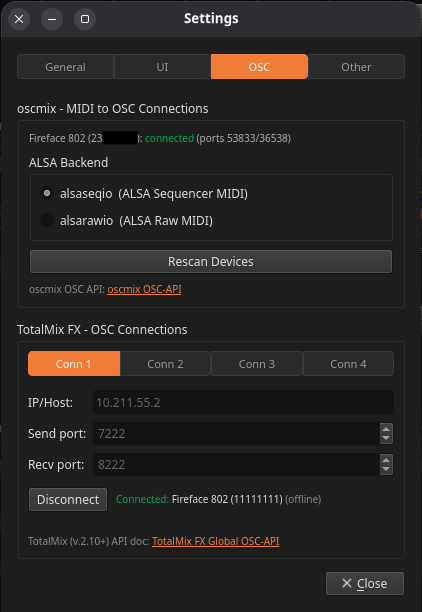
On Linux, an additional ALSA Backend radio group appears in the oscmix Auto-Connect section:
| Option | Description |
|---|---|
| alsaseqio (ALSA Sequencer MIDI) | Connects via the ALSA sequencer (aconnect -l). Recommended for most setups. |
| alsarawio (ALSA Raw MIDI) | Connects directly to the raw MIDI device (amidi -l). Use if the sequencer backend does not detect your device. |
The selected backend is persisted and used for all subsequent Rescan Devices operations.
The OSC Debug Log is a non-modal floating window for inspecting raw OSC traffic on the active connection. It is accessed from the Other page in the Settings dialog (or via a menu entry, depending on platform).
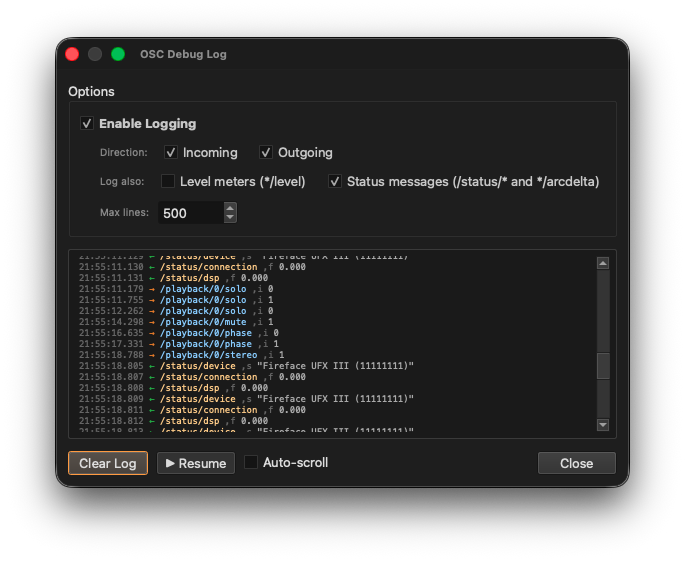
| Option | Description |
|---|---|
| Enable Logging checkbox | Activates message capture. Logging is off by default to avoid overhead. |
| Incoming / Outgoing checkboxes | Filter by message direction. |
| Level meters checkbox | Include or exclude high-frequency /*/level messages (excluded by default). |
| Status messages checkbox | Include or exclude /status/* and /*/arcdelta messages. |
| Max lines | Auto-truncates the log at this number of lines (default 500). |
| Pause / Resume button | Temporarily halts output without stopping capture. |
| Clear Log button | Clears the log view. |
| Auto-scroll checkbox | Keeps the view scrolled to the newest entry. |
Each log line shows: HH:MM:SS.mmm [→/←] /path ,typetag value(s).
oscmix-qt manages two categories of device connections simultaneously.
On startup, the app scans for connected RME Fireface devices via CoreMIDI (macOS) or ALSA (Linux). For each detected device, it launches an oscmix child process that bridges USB MIDI ↔ OSC. The Qt UI then communicates with each device over UDP on a dynamically allocated port pair.
Multiple devices are supported simultaneously. Each device gets its own oscmix process and its own port pair.
If an oscmix process exits unexpectedly, the app attempts to restart it automatically. After 3 failed restart attempts, the device is marked offline and no further restart attempts are made until Rescan Devices is triggered manually.
Process architecture (macOS example):
oscmix-qt
└── coremidiio -f 6,7 -p <portIndex>
    └── oscmix -p '<portName>' -r <recvPort> -s <sendPort>
Process architecture (Linux example):
oscmix-qt
└── alsarawio <device>
    └── oscmix -r <recvPort> -s <sendPort>
alsarawiousesexecvpinternally, sooscmixappears as a direct child ofoscmix-qtin the process tree. This is expected behavior.
TotalMix FX connections are added manually via the Settings dialog. Up to 4 simultaneous TotalMix FX connections are supported, each in a named slot (Conn 1 – Conn 4). These connections do not require a MIDI device or a child process — they communicate directly with TotalMix FX over UDP.
TotalMix FX connections coexist with oscmix connections in the same device list and can be switched between freely.
Both connection types track online/offline state:
- Online: The device is connected and responding. Title bar shows the active device name.
-
Offline: The device is known but not reachable. Shown with an
(offline)suffix in the device dropdown. The app continues to auto-reconnect in the background for oscmix devices. TotalMix FX slots stay in the list and reconnect automatically on the next startup if they were previously connected.
The Qt frontend source is currently in a private repository. It will be made public once it reaches a representable state.
Pre-built nightly binaries are available on the Releases page.
Following content is coming soon
Dependencies (when building locally):
- Qt 6.5 or later (Qt 6.10+ recommended)
- CMake 3.21+
- macOS: Xcode 14+,
macdeployqt - Linux:
linuxdeploy, ALSA development headers (libasound2-dev)
macOS quick start:
cd qt
bash setup_xcode.sh    # generates Xcode project via CMake
Linux quick start:
cd qt
bash setup_linux.sh    # configures CMake build in qt/build/
cmake --build qt/build --config Release
The oscmix, coremidiio (macOS), alsarawio, and alsaseqio (Linux) binaries must be built separately from the repo root and placed alongside the oscmix-qt binary (or inside the app bundle on macOS). See the main README for build instructions.