Brush Tools Draw
With the Draw tool, you can quickly draw a shape, extrude it and then turn it into an additive or subtractive brush.
By holding the left mouse button down and dragging over a surface you can easily create a rectangular shape. Let go of the left mouse button when it's the correct dimensions you wanted or hit the escape key to cancel and try again. Once you let go of the left mouse button the shape will turn green. You can now move the mouse around to extrude the brush. Once you are happy with the outline just click once more to build the brush.

Drawing a rectangle, extruding it, and then adding the brush
Before you click to confirm the outline and build the brush, simply hold the SHIFT key to create a subtractive brush.
If you hold SHIFT before starting the draw (and don't let go of it), it will create a subtraction through the brush you're drawing on to the other side (not requiring you to specify depth). This is particularly designed as a simple way of cutting a doorway through a wall or a hole in a ceiling/floor.

Holding the SHIFT key to quickly draw some subtractive brushes.
Instead of holding the left mouse button, simply click once and move your mouse cursor to another position. Click again and repeat until you come full circle.

Drawing some polygons by clicking to add points.
Warning: Any shape you design must be convex! A polygon that has all interior angles less than 180°. All the vertices point 'outwards', away from the center. If you need to build more complicated shapes please have a look at the 2D Shape Editor.

Example of concave and convex shapes (image thanks to mathopenref.com).
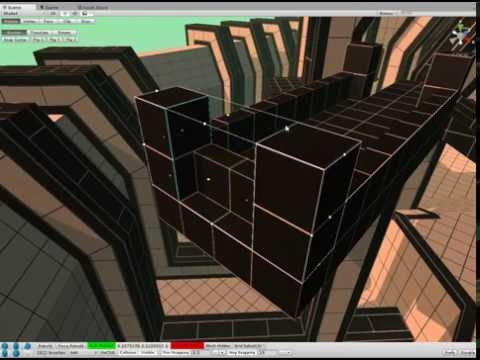
Check out this video that is making great use of the draw tool.
For more information visit the official http://sabrecsg.com/ website, or join the official discord server:


Tutorials
Brush Tools
Primitive Brushes
Compound Brushes
Resources
Requests for comments