A basic tutorial to write a telegram bot using python written by someone who does not know how to code at all (Learnt on the go). This version only uses telegram CommandHandler for simplicity purposes. We will be using python-telegram-bot as a wrapper. We will also learn to deploy using Heroku so that you do not need to on your IDE 24/7 to run the bot)
- Basic Knowledge On Python 3.x
- IDE (Personal Recommendation PyCharm)
- A Telegram Account
- Heroku Command Line
- Heroku Account - Free
- GIT
This tutorial will be using PyCharm as an IDE.
A brief description on what a virtual environment is, is simply a bare contained environment for your python packages. For example, on my cmd/terminal, when I run pip list
, globally, I have over a hundred python packages. I do not want to import that few hundred of packages over to my project folder when I initialize a new project. I would prefer a clean and lite python for each new project. A more detailed description can be found here.
Use the package manager pip to install all packages.
Proceed by installing pipenv into your cmd/terminal (globally). More commands can be found here
$ pip install pipenvLaunch your IDE and set up a virtual environment. Ensure that when you type
$ pipenv shell
$ pip list
in your IDE console, it only shows a few packages, normally less than 10.
$ pipenv shellis to activate the virtual environment you are in. If it shows already activated means you are already inside the environment.
Next we will need to install the telegram package known as python-telegram-bot. This is a wrapper to help simplify the telegram API.
We will be only be using version 12.0.0b1, do not use version 11.
$ pipenv install python-telegram-bot==12.0.0b1 --upgradeFor this particular tutorial, we will only be using telegram CommandHandler.
We will need to get a token bot from telegram. Search for the bot @BotFather on Telegram. Follow the onscreen instructions and it'll will come in the form of 31312371:ABCADSPOHADSPOPOSDxRRXto. Note that down. We will call it TOKEN.

You will need to access your console configuration and add the following variables: HEROKU_APP_NAME, MODE, TOKEN, API_KEY
You may leave it empty for now, except TOKEN which is from your previous Telegram Token ID.
###importing First import all modules, we will be using:
import logging
import os
import requests
import sys

from telegram.ext import Updater, CommandHandler, MessageHandler, Filters- logging, for logging.
- os for environment variables
- requests for API
- sys for stopping the bot
Next, the global variables:
# logger
logger = logging.getLogger()
logging.basicConfig(format='%(asctime)s - %(name)s - %(levelname)s - %(message)s',
                    level=logging.INFO)

# global variable
mode = os.getenv("MODE")  # set in path env
TOKEN = os.getenv("TOKEN")  # set in path env
api_key = os.getenv("API_KEY")  # set in path env
updater = Updater(token=TOKEN, use_context=True)
dispatcher = updater.dispatcher
Lets take a moment and talk about the different functions. For mode,Token,api_key had already specify it in your console environment variable. updater and dispatcher is a function
from the telegram wrapper. Which you can read it from here.
Now, lets determine what "mode" we should run in. Let's say you want to deploy it to a server, you will have to run a different sets of commands. Run locally on your IDE, another sets of commands, therefore we write this:
# options to run
if mode == "dev":
    def run(updater):
        updater.start_polling()
elif mode == "prod":
    def run(updater):
        PORT = int(os.environ.get("PORT", "8443"))
        HEROKU_APP_NAME = os.environ.get("HEROKU_APP_NAME")
        updater.start_webhook(listen="0.0.0.0", port=PORT, url_path=TOKEN)
        updater.bot.set_webhook("https://{}.herokuapp.com/{}".format(HEROKU_APP_NAME, TOKEN))
else:
    logger.error("MODE not specified")
    sys.exit(1)
Now, set your environment variable "MODE" as dev. dev stands for developer mode, while prod is only used during the server deployment. In this case, we are using Heroku thus the webhook.
Now here's the juicy part. Writing of functions:
DO NOT COPY THIS PART (SAMPLE EXPLANATIONS)
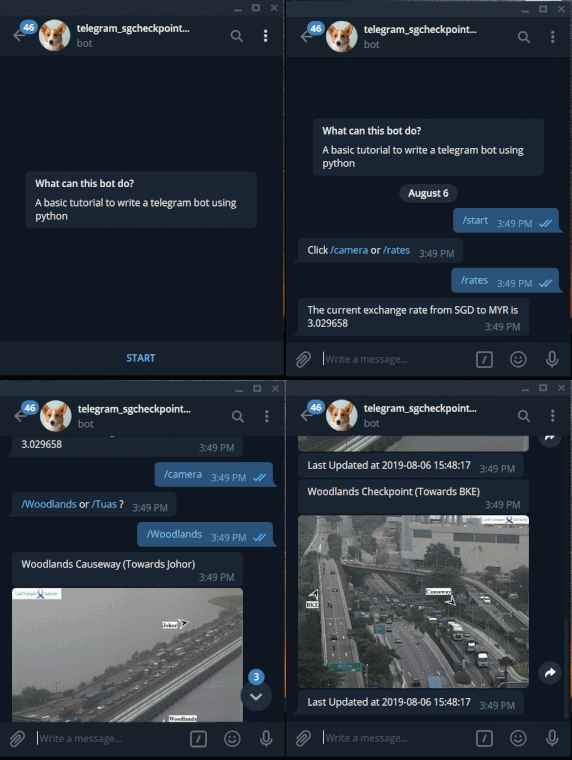
First this is what happens when a user types in /start.
# this is the start function; what happens when the bot reads the word /start?

def start(update, context):
    context.bot.send_message(chat_id=update.message.chat_id, text="Click /camera or /rates")
# when someone types /start, it runs the function "start"
start_handler = CommandHandler('start', start)
dispatcher.add_handler(start_handler)# to make it "listen" for commands locally
updater.start_polling()Now let's talk about handling APIs and reading JSON files. Regarding getting of the images for the live traffic feed and currencies API.
Singapore Live Traffic data is open source and made available here.
It's read as a json file. We will parse the json file to a readable dictionary.
response = requests.get('https://api.data.gov.sg/v1/transport/traffic-images').json()
    lta_raw_data = response['items'][0]
    lta_data = lta_raw_data['cameras']  # a list
    for each_dict in lta_data:
        if '2701' in each_dict.values():  # Woodlands Causeway (Towards Johor)
            woodlands_johor = each_dict
The ID of each camera can be found by inspecting the data mall images and identifying the URL.
The same theory applies for the currency API grab. The API we are using will be a free-to-use API known as The Free Currency Converter API.
Finally, to run all the functions and for the bot to "listen" to commands, we will use
if __name__ == '__main__':
    # all dispatchers to be placed here

    # then use the "run" function to determine which MODE it is in and
    # execute it appropriately
    run(updater)
The rest of the code can be found in bot.py.
By running the code via console using your IDE, you are running it locally, thus it will be dev mode. Run the bot and check if it is working. Once it is we can move on to creating a Heroku application (running without an IDE)
Install Heroku Command Line and GIT from the Pre-Requisite link and create a Heroku account.
Create a new application in Heroku webpage. Load the newly created Heroku application name to the Environment Variable as
HEROKU_APP_NAME in ENVIRONMENT VARIABLES (OPTIONAL IN IDE, MUST IN HEROKU)
Enter all Environment Variable into Heroku under Settings>Config Vars

Heroku requires a procfile in the root directory of your project folder(i.e where you put your python script).
the procfile must be extension-less, not even .txt
in the procfile type in web: python3 xxx.py where xxx is the name of your python file. In my case it's bot.py
For more explanation why it is in this format, visit this site
Heroku also requires something known as a requirements.txt which is also placed at the root directory of your project folder.
By running the commands:
$ pipenv updatefollowed by
$ pipenv run pip freeze > requirements.txtClick on requirements.txt it should have the word python-telegram-bot==12.0.0b1 inside.
We will be uploading Heroku via GIT.
Launch Console on your IDE, ensure that the console points to your project folder where you initialize your scripts and pipenv.
Log in to Heroku
$ heroku loginInitialize GIT
$ git initLoad it into Heroku Remote Repo
heroku git:remote -a NAMEOFYOUR_HEROKU_APPAdd all files to GIT Local Repo
$ git add .aCommit the files
$ git commit -am "First Commit"Deploy code
$ git push heroku masterAny other error codes can be resolved here
Check out the Medium Article I wrote here for deploying with VPS. Use incognito mode to bypass view limit
There is a V2 of the bot here, which covers ConversationHandlers, reply keyboard etc. Or in simple terms, a better UI.
This current version can be further develop by enabling more logging, handling errors, dockerize the bot.
Pull requests are welcome. For major changes, please open an issue first to discuss what you would like to change.