Accessibility
I'm committed to ensuring that Note Toolbar is implemented in an accessible way.
Note Toolbar's settings UI is designed to be fully keyboard navigable.
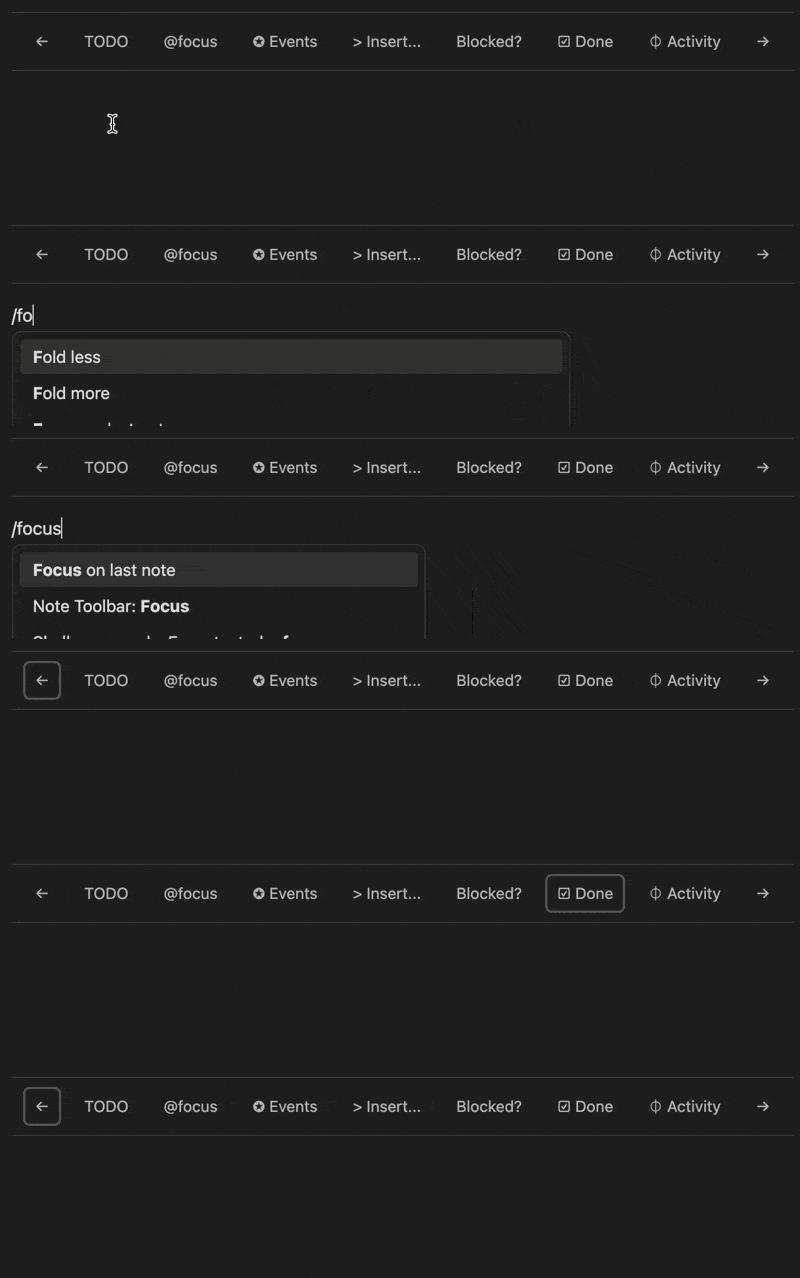
For toolbars, use the command: Note Toolbar: Focus to put keyboard focus within the toolbar itself. You can then navigate between items using the arrow keys, and click using enter or spacebar.
Tip
You can assign a keyboard shortcut to this command in Obsidian: Settings > Hotkeys.
Toolbar items use Obsidian's color variables. If you require higher contrast, use a theme, the Style Settings plugin, or a snippet that sets these CSS variables with higher-contrasting colors:
- item background color (on hover):
--cg-nt-item-bg-color-hover - item text color:
--cg-nt-item-text-color - item text color (on hover):
--cg-nt-item-text-color-hover - toolbar background color:
--cg-nt-tbar-bg-color
Setting tooltips for your toolbar items will set the aria-label attribute for each item in the list.
If you spot any issues or identify any improvements that would make this plugin (including its settings windows) more accessible, please log an issue.