Style Settings plugin support
With the Style Settings ↗ plugin, it is possible to further customize the colors, positioning, sizing, spacing, and more of your toolbars, even if you don’t know CSS.
- Install the Style Settings plugin ↗ from Community Plugins and enable it.
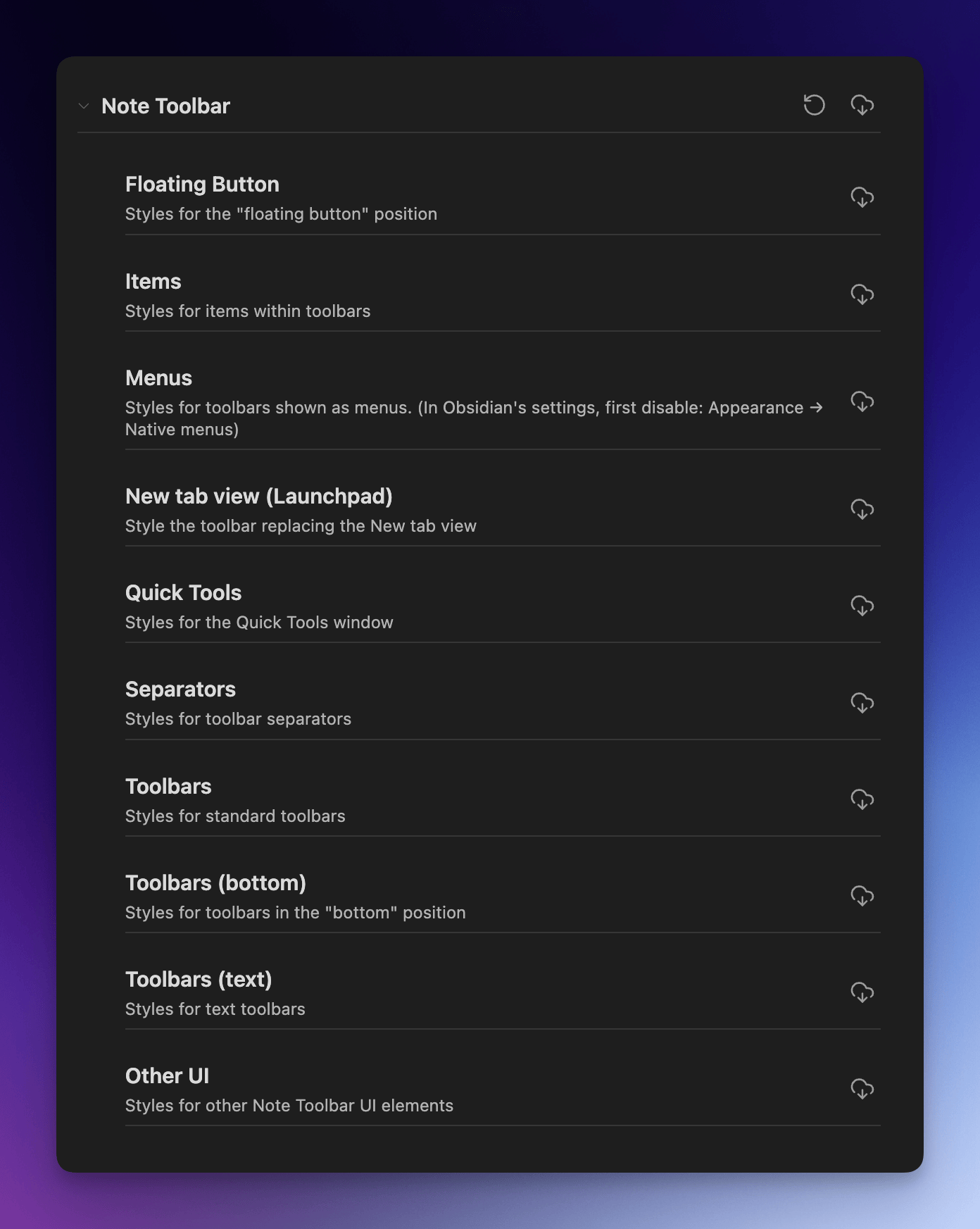
- In settings: Community Plugins → Style Settings, expand the Note Toolbar section.
Tip
To see your changes more easily, open Style Settings in a new tab by running the Show style settings view command.
- In color pickers, the second slider allows you to set transparency.
- To reset all changes, at the top to the right of "Note Toolbar" click the 🔄 icon (
Reset all settings to default).⚠️ Note that it's not possible in that plugin to reset all styles (in particular colors) to the theme's styles, so you'll need to reset everything (or set the style).
- Regarding transparency for the toolbar itself, or buttons/links on top of it:
- When
Position = Below Propertiesnote content will be able to show through the toolbar, as the toolbar floats above it. - When
Position = Topthe toolbar is inserted underneath the tab's header. In this case, it's not possible to have a transparent background.
- When
- Set the floating button's position to the top by setting the Y position on mobile to a smaller number, e.g.,
20works on an iPhone 15.
- To be able to style menus, make sure this setting is disabled in Obsidian's settings: Appearance → Advanced → Native menus
Get support for the Style Settings plugin here:
- GitHub: https://github.com/mgmeyers/obsidian-style-settings
- GitHub Issues: https://github.com/mgmeyers/obsidian-style-settings/issues
- Style Settings on Obsidian Forums: https://forum.obsidian.md/t/style-settings-plugin/15901
See also the #appearance channel on the Obsidian Discord: https://discord.com/channels/686053708261228577/702656734631821413